How to take website screenshots from the command line
Alex Chen · Updated 8 min read
Find out how easy it is to capture and share pixel-perfect screenshots at scale using Allscreenshots. Sign up for a free account and start integrating your first screenshot API call today.
AC
Alex Chen
Full-stack developer and technical writer who loves browser automation and making complex tools accessible.
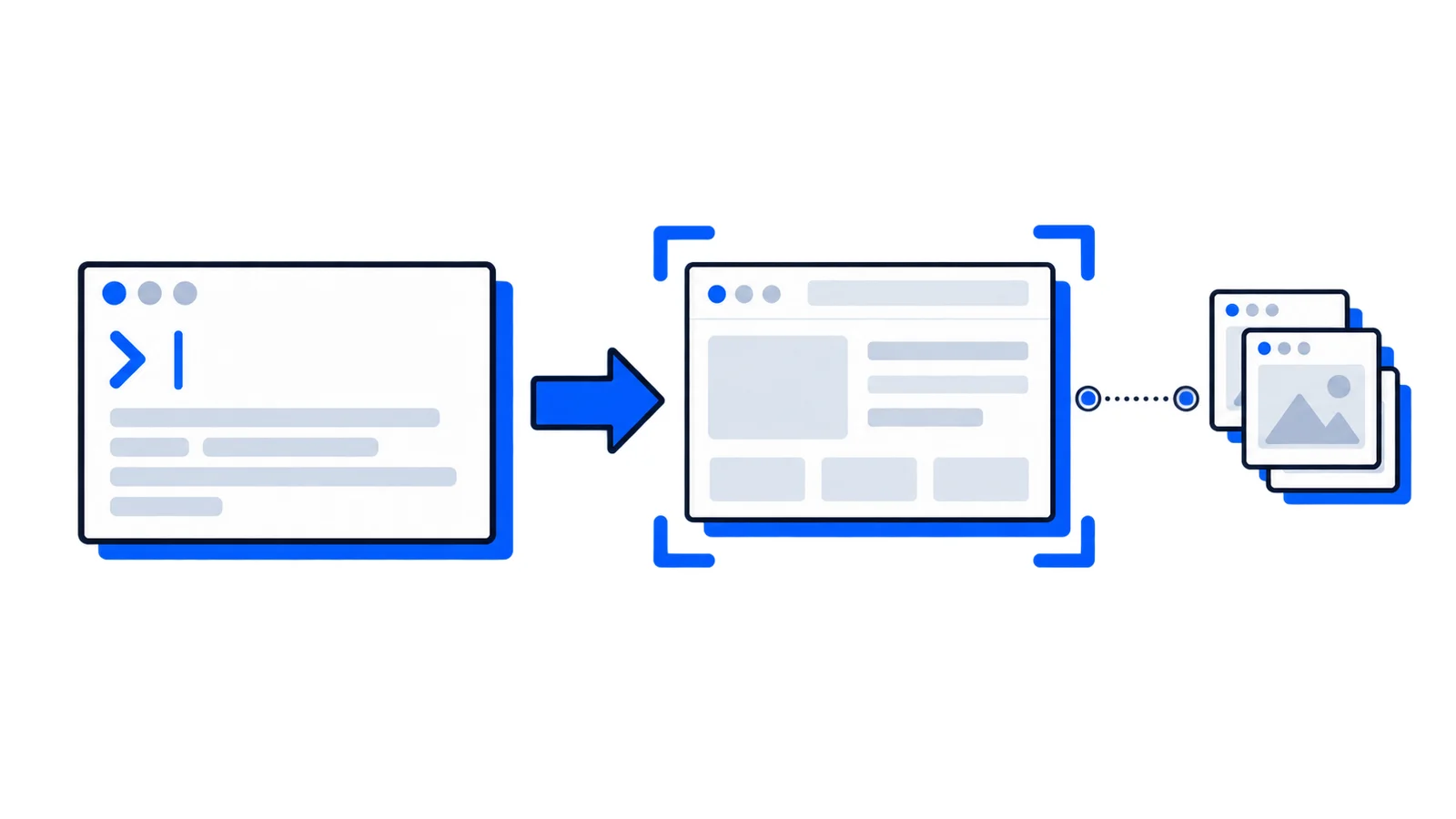
Taking website screenshots from the command line unlocks automation possibilities that GUI tools can't match. Whether you're monitoring competitors, generating thumbnails, or building visual regression tests, CLI tools let you script the entire process.
This guide covers the main approaches: headless browsers, dedicated CLI tools, and screenshot APIs.
Why capture screenshots from the terminal?
Command-line screenshot tools solve problems that browser extensions and manual captures can't:
Automation: Schedule captures with cron, integrate into CI/CD pipelines
Batch processing: Capture hundreds of URLs from a file
Consistency: Same viewport, timing, and settings every time
Headless operation: Run on servers without displays
Scripting: Chain with other tools, parse output, trigger workflows
If you're capturing more than a few screenshots per week, CLI tools will save you hours.
Using AllScreenshots CLI
The fastest way to capture website screenshots from the terminal is with a dedicated tool. AllScreenshots CLI handles browser rendering in the cloud, so you don't need to manage headless Chrome locally.
Installation
# macOS/Linux with Homebrewbrew tap allscreenshots/allscreenshots
brew install allscreenshots
# Or with Cargo (Rust)cargoinstall allscreenshots
Basic usage
Capture a screenshot and display it directly in your terminal:
allscreenshots https://github.com
Save to a file instead:
allscreenshots https://github.com -o github.png
AllScreenshots displays images inline using Sixel, iTerm2, or Kitty protocols. If your terminal supports it, you'll see the screenshot without opening a separate viewer.
Full page screenshots
Capture the entire scrollable page, not just the viewport:
Running headless Chrome locally requires significant resources. Each capture spawns a full browser instance. For high-volume captures, a cloud-based solution avoids the infrastructure overhead.
Same limitations as Chrome's built-in approach apply.
Using curl with screenshot APIs
If you want to avoid local browser dependencies entirely, screenshot APIs work via HTTP:
# Using AllScreenshots API directlycurl --fail-with-body -X POST "https://api.allscreenshots.com/v1/screenshots"\-H"X-API-Key: YOUR_API_KEY"\-H"Content-Type: application/json"\-d'{"url":"https://example.com","fullPage":true,"responseType":"binary"}'\-o screenshot.png
This approach works from any environment that has curl, including minimal Docker containers and serverless functions.
Command-line screenshot tools transform what would be tedious manual work into automated workflows. For most users, a dedicated CLI tool like AllScreenshots offers the best balance of simplicity and features. You get cloud rendering, device emulation, and batch processing without managing headless browsers.
If you need complete control over the browser, Puppeteer scripts let you customize every aspect of the capture. For quick one-off screenshots, Playwright's CLI or Chrome's built-in headless mode work fine.
Start with simple captures, then add automation as your needs grow. A few lines of bash can replace hours of manual screenshot work.