How to capture full-page screenshots in Figma (without browser extensions)
Riley Thompson4 min read
Find out how easy it is to capture and share pixel-perfect screenshots at scale using Allscreenshots. Sign up for a free account and start integrating your first screenshot API call today.
RT
Riley Thompson
Developer advocate focused on web tooling, screenshot APIs, and helping teams ship better visual experiences.
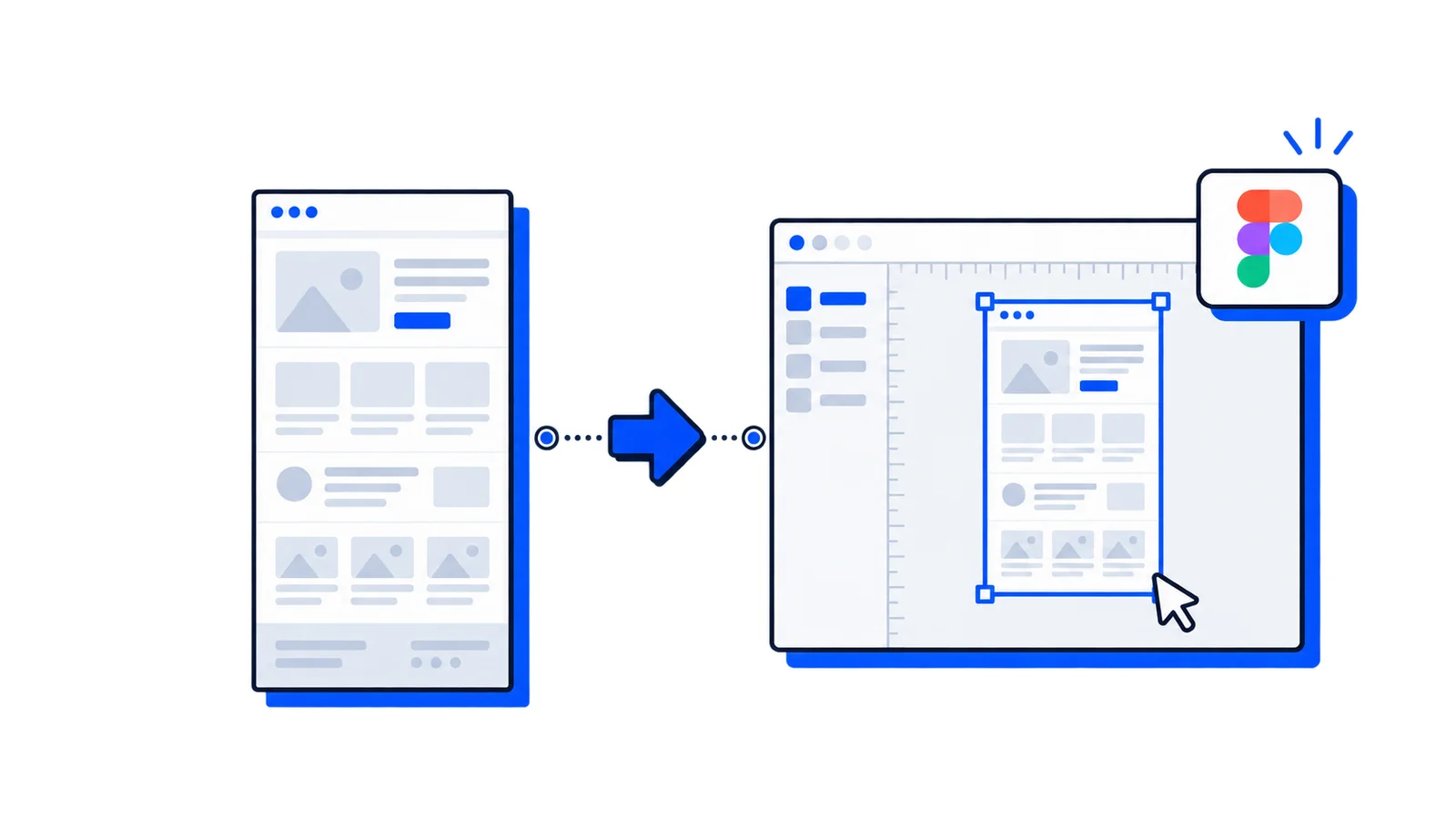
Designers need website screenshots constantly. Competitive analysis, design inspiration, client presentations, documentation. The usual workflow: open browser, navigate to site, take screenshot, crop it, import to Figma, resize. Repeat dozens of times.
There's a faster way. The Allscreenshots plugin brings full-page screenshot capture directly into Figma.
Why screenshot tools in Figma matter
When you're deep in a design flow, context switching kills productivity. Every trip to the browser breaks concentration. And browser screenshots have limitations:
Visible area only — you miss content below the fold
Manual stitching — full-page captures require scrolling and combining
Device emulation — testing mobile views means resizing windows or using DevTools
Lazy-loaded content — images that load on scroll get missed
The Allscreenshots Figma plugin solves these by capturing the entire rendered page, at any device size, without leaving Figma.
Installing the plugin
Open Figma and go to Community (or visit the plugin page)
Search for Allscreenshots
Click Open in Figma
That's it. No browser extensions. No separate apps.
Capturing your first screenshot
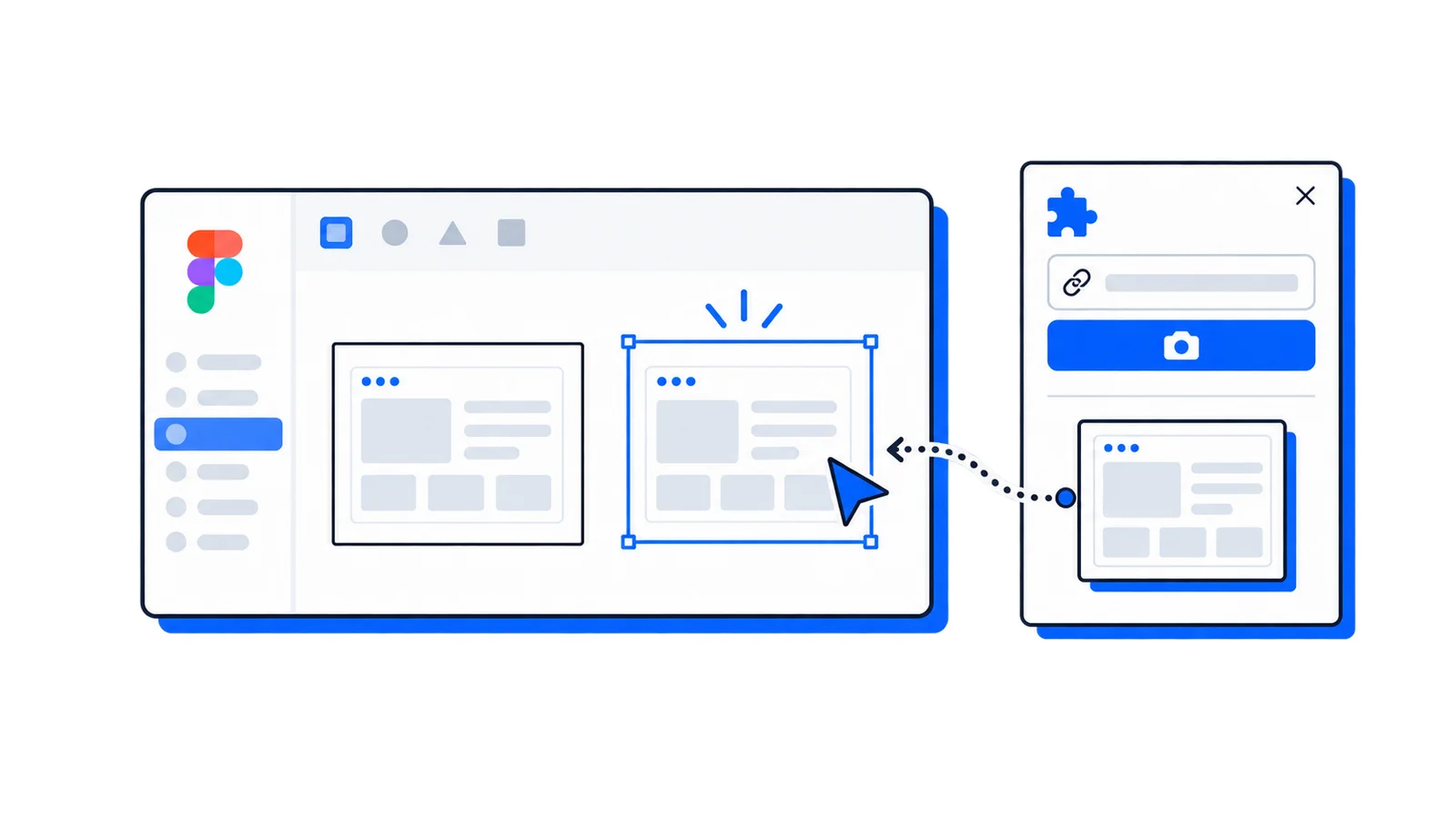
Right-click on your canvas → Plugins → Allscreenshots
Enter the URL you want to capture
Choose your settings:
Full page or viewport only
Device preset (Desktop, iPhone, iPad, etc.)
Custom dimensions if needed
Click Capture
The screenshot imports directly onto your canvas as an image, ready to use.
What makes this different
Full-page capture
Unlike browser screenshots, the plugin captures the entire scrollable page. A 10,000-pixel landing page? No problem. The API renders the full page and delivers it as a single image.
Device emulation
Need a mobile view? Select iPhone 14 Pro from the device presets. The screenshot renders at the exact resolution with proper mobile rendering — not just a scaled-down desktop view.
No lazy-loading issues
The plugin waits for content to load before capturing. Images, fonts, animations — everything renders before the screenshot is taken.
Ad and popup blocking
Cookie banners and ads clutter screenshots. The plugin can block these automatically, giving you clean captures every time.
Use cases
Competitive analysis boards — Capture competitor homepages and feature pages without leaving your analysis file.
Design system documentation — Screenshot your live components for reference specs.
Client presentations — Import before/after views of websites you're redesigning.
Mood boards — Collect design inspiration from across the web in one Figma file.
QA and handoff — Capture the implemented design to compare against your mockups.
Tips for better screenshots
Wait for dynamic content. If a site has animations or loading states, increase the delay setting to let everything render.
Use device presets for consistency. When comparing multiple sites, use the same device preset so dimensions match.
Explore advanced options. The plugin supports custom CSS injection, element selectors, and hide selectors for precise control. See the full documentation for details.
Try it now
Install the Allscreenshots plugin from the Figma Community and capture your first screenshot in under a minute.
No more browser tab juggling. No more manual cropping. Just paste a URL and get a pixel-perfect screenshot on your canvas.