Find out how easy it is to capture and share pixel-perfect screenshots at scale using Allscreenshots. Sign up for a free account and start integrating your first screenshot API call today.
Start capturing screenshots in minutes
Developers, marketers, and founders use Allscreenshots to automate website captures. No credit card required to get started.
You take a screenshot of a documentation page. The PNG looks clean. You export a smaller JPEG, paste it into a ticket, and the blue links suddenly look fuzzy.
The browser did not render the page differently. The export changed the pixels around the letters. On text-heavy images, that trade can be surprisingly expensive: a JPEG can lose detail and still be bigger than a lossless alternative.
We tested that with a fresh capture of MDN's CSS color documentation. The useful result was not a magic quality number. It was a lossless WebP that used fewer bytes than our lossy WebP.
A page built out of difficult edges
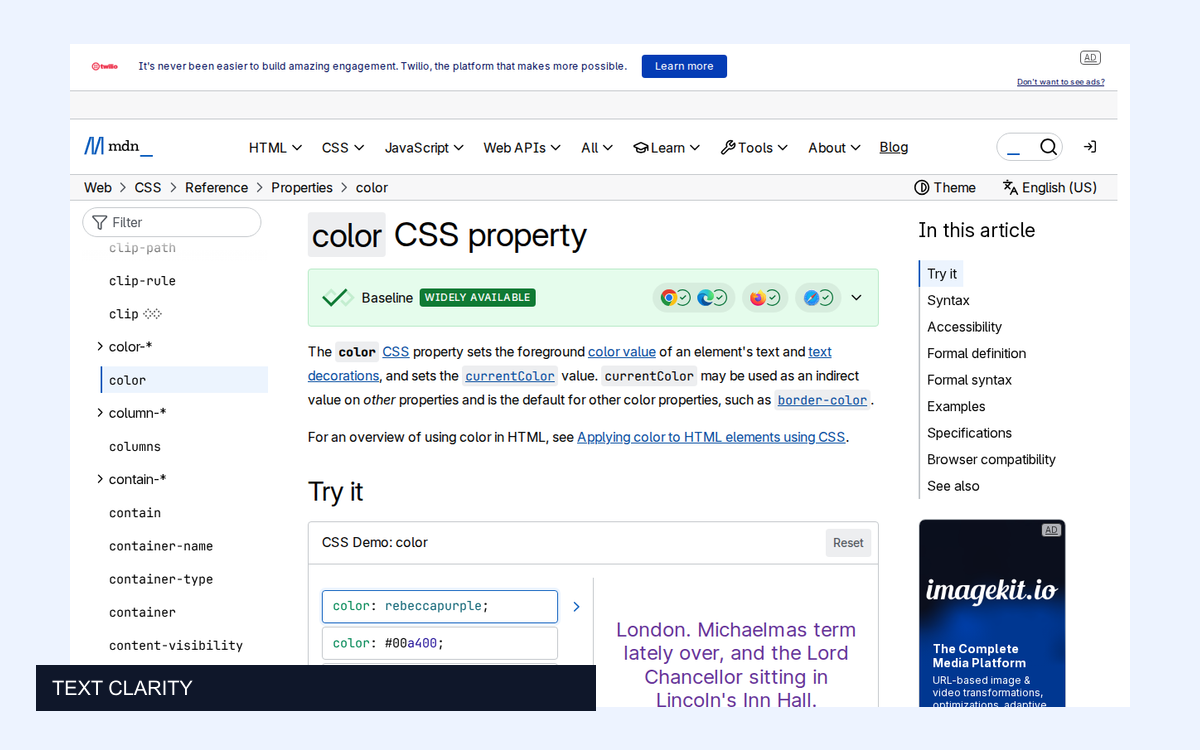
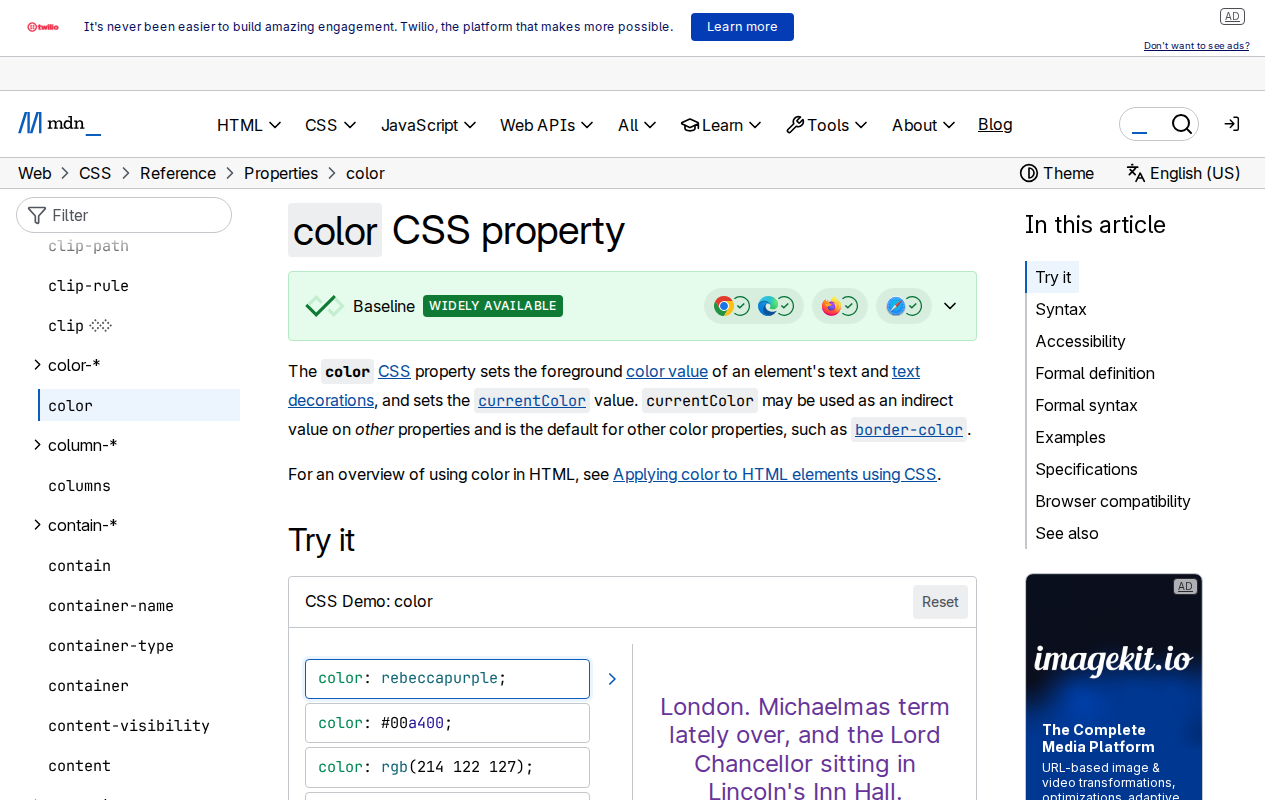
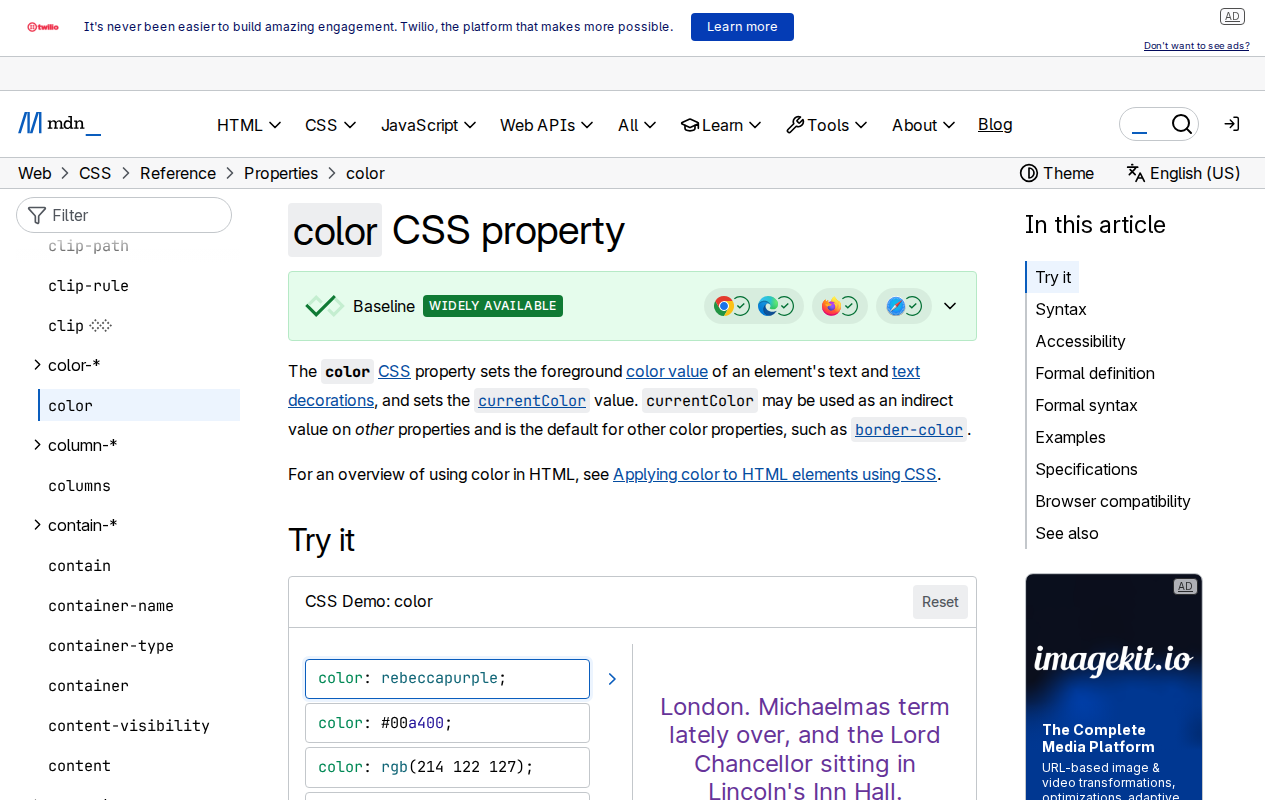
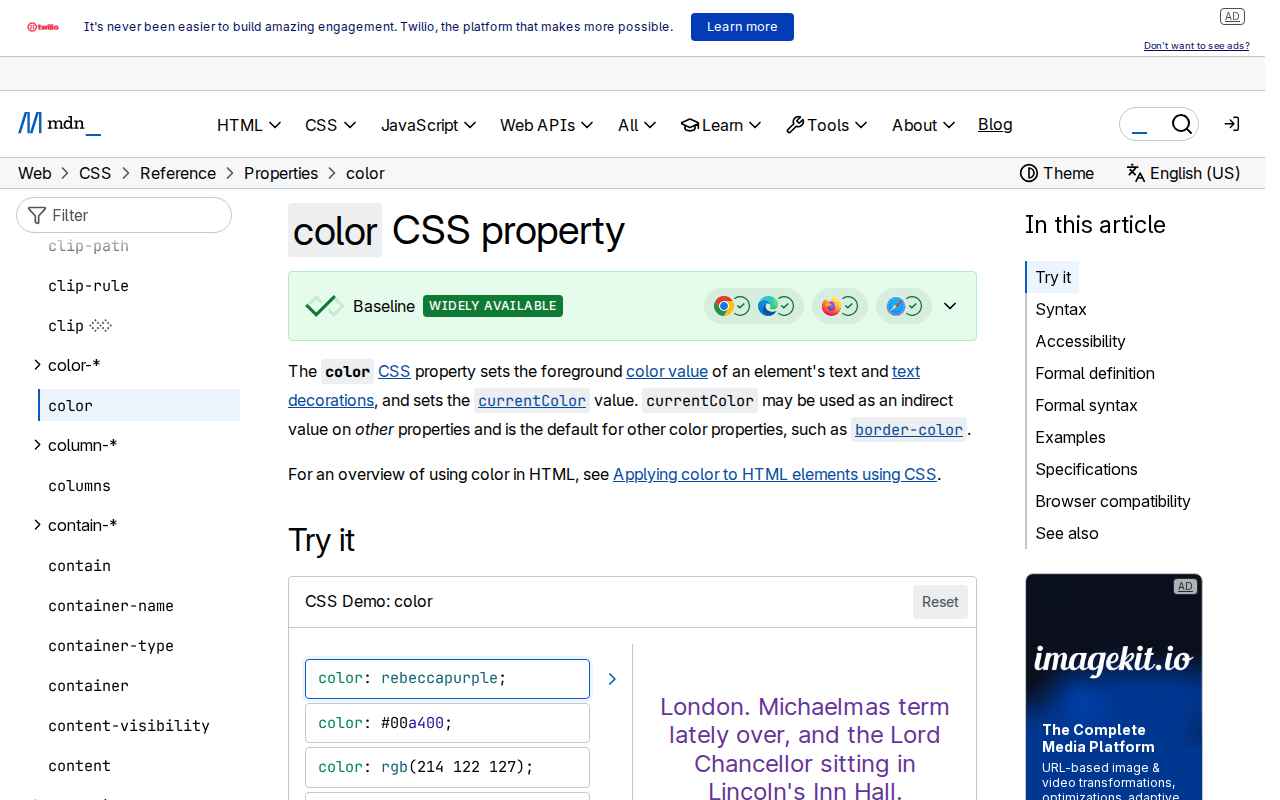
MDN CSS color documentation, captured 29 September 2026. Source: developer.mozilla.org; text by Mozilla Contributors, CC BY-SA 2.5. Documentation content in the re-encoded and cropped examples retains that license. View source page.
The screenshot contains black body text, blue underlined links, colored syntax, pale gray boxes, and large white areas. It was captured through AllScreenshots on 29 September 2026 at 1280 × 800. The capture request enabled ad blocking, but this page still contained visible ad placements; we kept the captured pixels rather than retouching the source.
Those repeated backgrounds are friendly to lossless compression. The abrupt transitions around the letters make lossy changes easier to see.
We normalized the capture to opaque 8-bit sRGB and exported it without resizing. PNG used level 9 compression. The WebP encodes used effort 6.
Encoding
Size
Encode time
SSIMULACRA 2
PNG, level 9
119.4 KiB
43.9 ms
100.0
JPEG, q40 / 4:2:0
76.9 KiB
4.9 ms
51.9
JPEG, q40 / 4:4:4
92.9 KiB
7.8 ms
53.9
JPEG, q80 / 4:4:4
167.8 KiB
8.8 ms
75.7
WebP, q80 / effort 6
76.1 KiB
82.6 ms
77.4
WebP, lossless / effort 6
72.2 KiB
52.9 ms
100.0
The 72.2 KiB lossless WebP reproduced every RGB pixel. The quality-80 WebP was 76.1 KiB and changed pixels. That is a result for this page and these encoders, not a promise that lossless always wins.
Two separate things happen in JPEG
Lowering JPEG quality allows more approximation of image detail. Chroma subsampling separately reduces the spatial resolution of color information. In 4:2:0, color samples are shared across a larger area than in 4:4:4.
You can therefore change color sharpness without changing the quality number. We made two JPEGs at quality 40, one with 4:2:0 and one with 4:4:4. Sharp exposes these as separate JPEG options.
The 4:4:4 file was larger. It also preserved colored edges better, but it did not restore an exact copy of the source. Quality 40 still approximates detail even when all the color samples are retained.
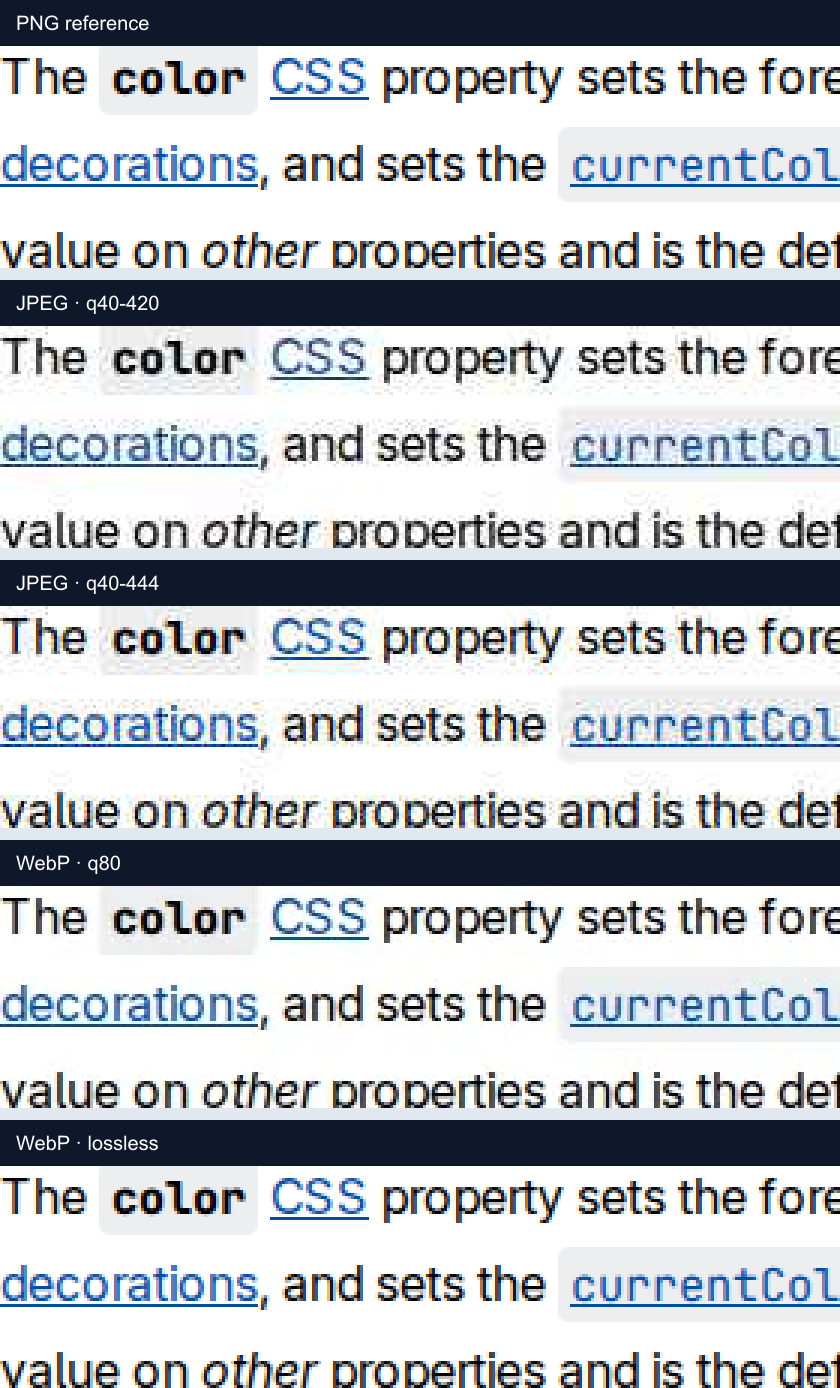
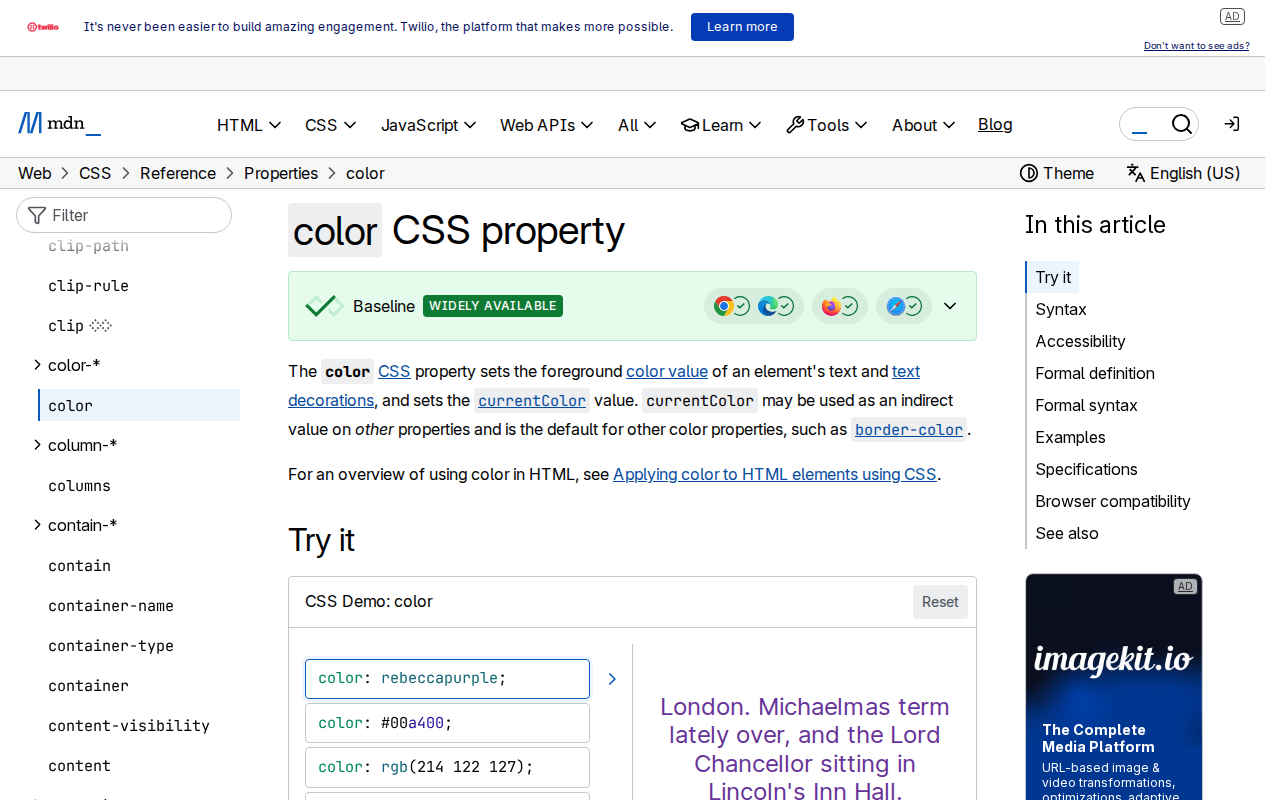
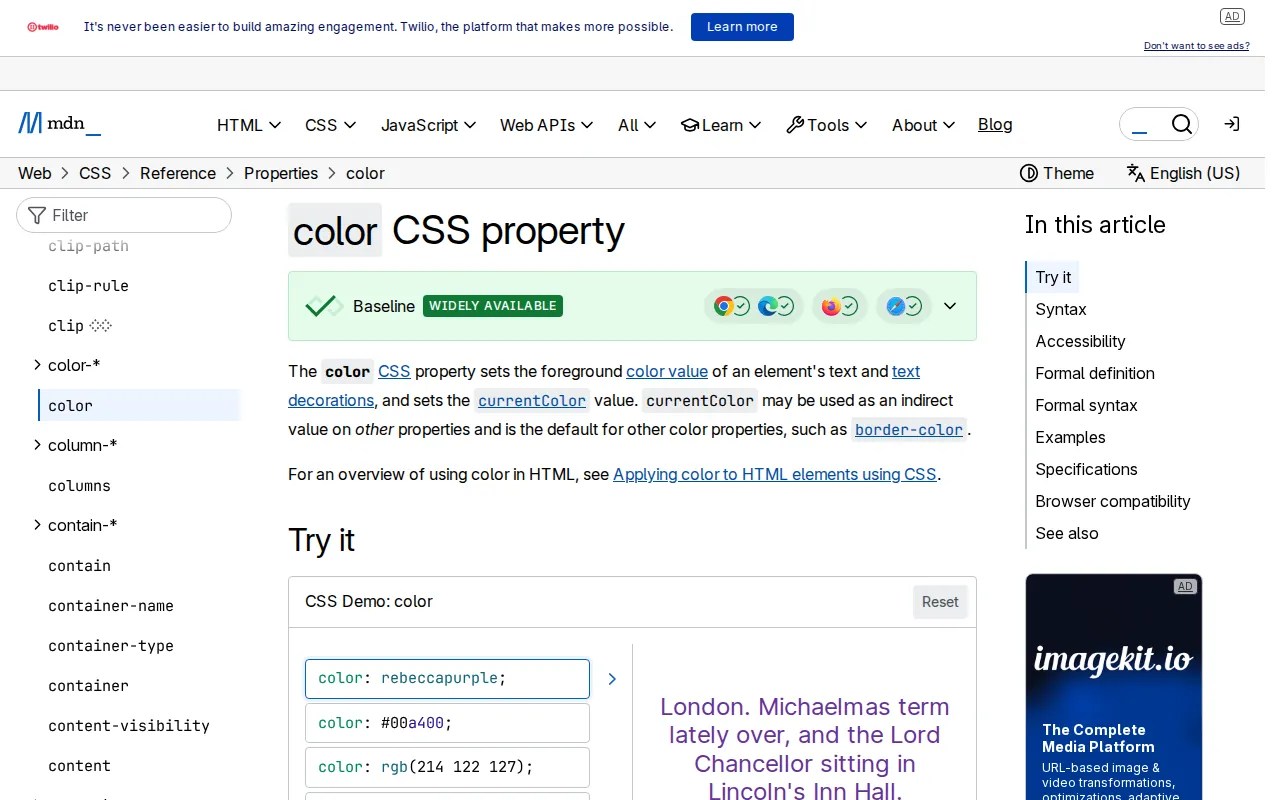
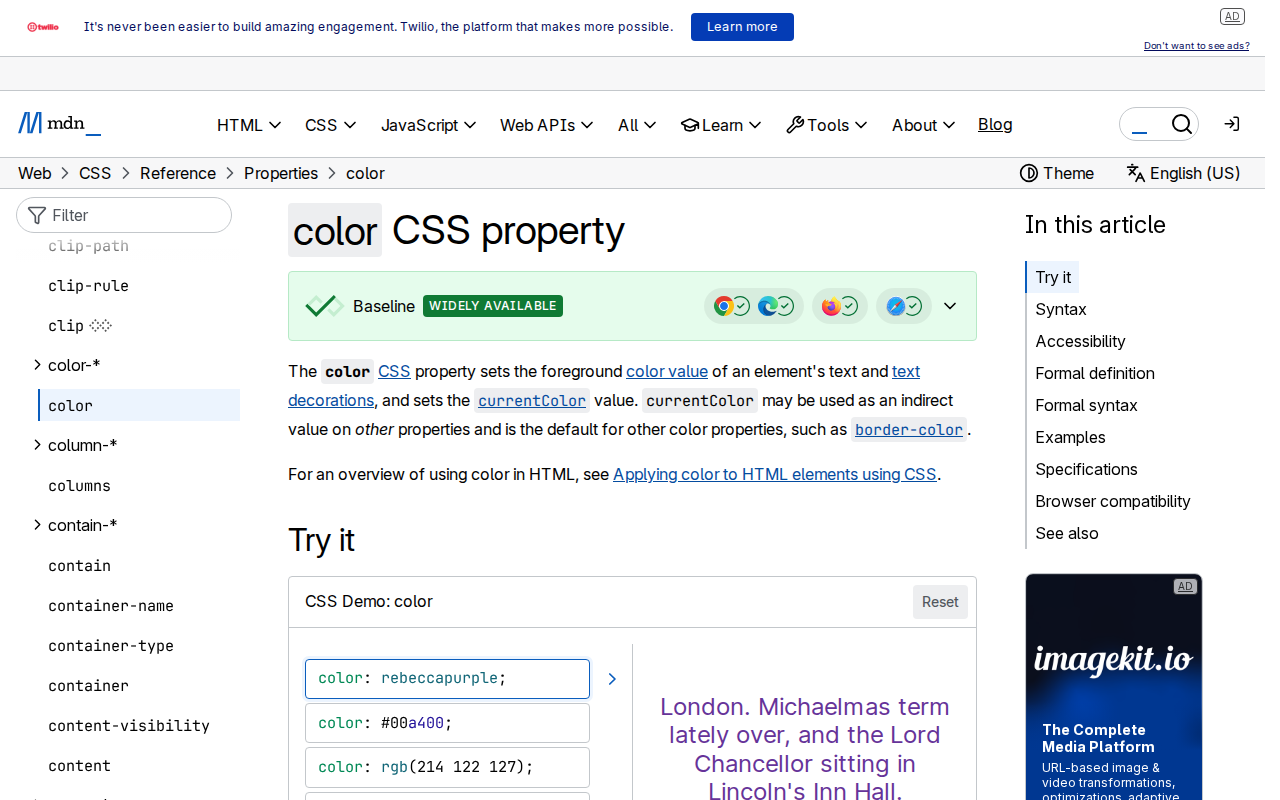
Decoded crops at 3× nearest-neighbor enlargement. Click to inspect the PNG comparison at full size.
The blue links make the subsampling difference easier to see. In the 4:2:0 strip, color spreads into the light background around small strokes. The 4:4:4 strip reduces that effect, but the surrounding texture still differs from the PNG. The lossless WebP strip has the same pixels as the reference.
These are decoded crops enlarged three times with nearest-neighbor scaling and stored as PNG. Enlargement makes the artifacts inspectable; it does not mean a reader sees them this strongly at normal size.
What the quality scores do and do not tell you
The table includes SSIMULACRA 2 scores against the reference. They help quantify a difference that file size cannot describe. The metric is not an OCR test, an accessibility test, or a guarantee that a command remains readable.
For documentation, inspect the content that can change meaning: punctuation, small numbers, code comments, link underlines, and letters such as I, l, and 1. A whole-image score can conceal a problem in a tiny but important region.
Lossy and lossless WebP use different compression methods. Lossless encoding can exploit repeated pixel patterns without changing the letters. Google's lossless WebP specification describes that separate representation.
This is particularly worth trying for forms, settings panels, code samples, and tables. Keep the PNG while you compare. If a publishing tool re-encodes the upload, check the downloaded or delivered file as well; the settings on your laptop no longer describe the final image.
Fix dimensions before blaming the format
A lossless file can still look blurry if a browser stretches it, shrinks it to a fractional size, or displays too few source pixels for a high-density screen. Compression and display scaling are different causes.
Inspect the image at its intended CSS width and on the displays your readers use. If a page shows the screenshot at 640 CSS pixels, a 1280-pixel image can provide two source pixels per CSS pixel on a 2× display. It still needs a suitable source capture; upscaling a small screenshot cannot recover missing detail.
Also keep useful text as HTML where possible. A screenshot can show which setting to click, while the command to copy lives in a real code block next to it.
Storage savings are only useful if the destination accepts the file
For browser-based documentation, WebP is widely supported. For an unfamiliar ticketing system, email workflow, or document editor, test the actual upload and preview path. PNG remains a practical fallback for precise UI captures. MDN tracks browser image support; application import support is a separate check.
On our machine, the lossless WebP took roughly 53 ms to encode, versus 44 ms for PNG and 5–9 ms for the JPEG settings. These are medians after a warm-up, including file writes, not browser loading measurements. The raw report includes each run and encoder version.
For text-heavy screenshots, try PNG and lossless WebP first. Then use a lossy export only if the byte saving earns its place after a close look at the text. You can automate the source capture with AllScreenshots and make that export decision once in your documentation pipeline.