Playwright Cross-Browser Testing: A Practical Guide
Alex ChenJun 21, 20269 min read
Find out how easy it is to capture and share pixel-perfect screenshots at scale using Allscreenshots. Sign up for a free account and start integrating your first screenshot API call today.
AC
Alex Chen
Full-stack developer and technical writer who loves browser automation and making complex tools accessible.
Cross-browser testing is not about proving that every pixel is identical in every browser. Browsers do not render exactly the same way, and your users are not all running the same engine, viewport, operating system, or device settings.
The goal is more practical: prove that critical user journeys still work in the browsers your audience depends on, catch browser-specific layout and JavaScript issues before release, and keep the test suite fast enough that developers trust it.
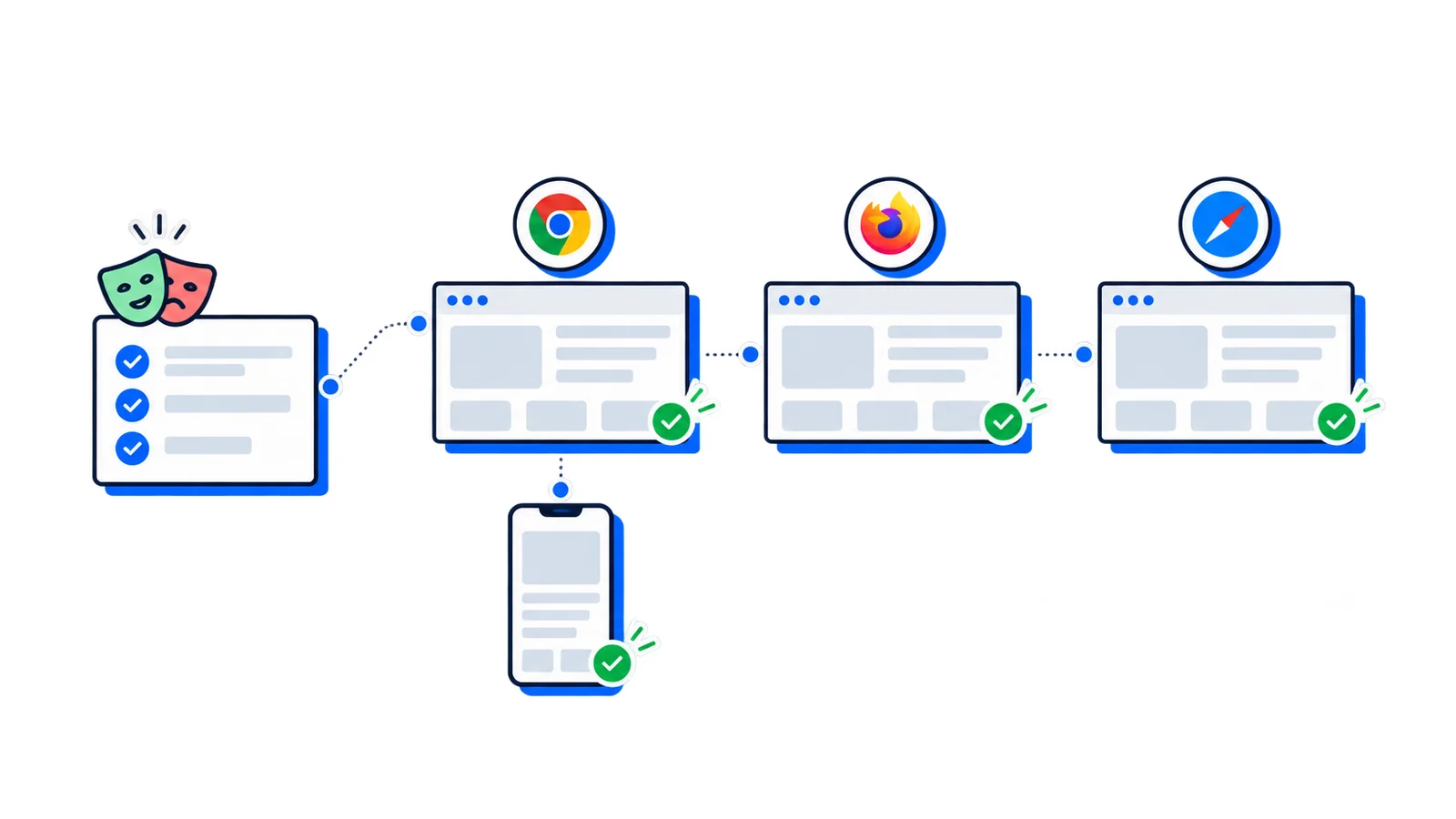
Playwright is a strong fit for that job because it can run the same tests against Chromium, Firefox, and WebKit from one test runner. It can also emulate mobile devices, run branded Chromium browsers such as Google Chrome and Microsoft Edge, capture traces, and split work across CI jobs.
This guide focuses on how to build a Playwright cross-browser setup that gives useful coverage without turning every pull request into a slow browser matrix.
What Cross-Browser Testing Should Prove
Start by deciding what risk you are trying to reduce. A good cross-browser suite usually answers these questions:
Can users sign up, log in, search, buy, save, export, or complete the core workflow?
Does the app render usable layouts in Chromium, Firefox, and WebKit?
Do mobile navigation, dialogs, sticky headers, and forms work at phone-sized viewports?
Do browser APIs such as downloads, clipboard access, file uploads, media playback, or date inputs behave as expected?
Do important pages still look sane after CSS, dependency, or design system changes?
It should not try to duplicate every unit test in every browser. That creates more runtime than signal. Use Playwright for browser behavior and real user flows. Keep business logic, pure functions, and edge-case permutations in cheaper test layers.
Make the cross-browser suite intentionally small at first. A fast suite that runs on every pull request is more valuable than a complete suite that developers only run before major releases.
Browser Engines Playwright Can Cover
Playwright's core browser projects map to three engines:
Project
Engine
Useful coverage
Chromium
Blink/V8
Chrome, Edge, many desktop users, most Android browser behavior
Firefox
Gecko/SpiderMonkey
Firefox-specific layout, event, storage, and media behavior
Playwright can also run against branded Google Chrome and Microsoft Edge through browser channels, and it can emulate selected desktop, tablet, and mobile device profiles.
There are two important caveats:
Playwright's WebKit is not the branded Safari app. It is a WebKit build that gives strong Safari-like coverage, but the closest Safari signal still comes from running WebKit on macOS when platform-specific behavior matters.
Playwright's Firefox support uses its own patched Firefox build. Do not assume it is the same as launching a user's installed Firefox binary.
Those caveats do not make the coverage weak. They just mean you should treat Playwright as a practical automation layer, not as a perfect substitute for every physical device and browser combination.
Configure a Browser Matrix
Most teams should start with one Playwright config that defines browser projects. The project names become the handles you use locally and in CI.
npx playwright test tests/e2e/checkout.spec.ts --project=firefox
That last command is the one developers use most often when debugging a browser-specific failure.
Choose the Right Test Matrix
Running every test in every browser sounds thorough, but it usually becomes expensive quickly. A better matrix separates critical coverage from broad coverage.
Suite
Browser coverage
When to run
Smoke flows
Chromium, Firefox, WebKit, mobile Chrome, mobile Safari
Then run the smoke folder across every project and the full suite in Chromium:
npx playwright test tests/e2e/smoke
npx playwright test tests/e2e/full --project=chromium
This gives you browser breadth where it matters most and keeps routine CI practical.
Write Tests That Survive Browser Differences
Cross-browser tests are less forgiving than single-browser tests. Small assumptions that pass in Chromium can fail in Firefox or WebKit.
Prefer user-facing locators
Role, label, placeholder, and text locators are usually more resilient than CSS selectors.
import{ test, expect }from'@playwright/test';test('visitor can request a product demo',async({ page })=>{await page.goto('/pricing');await page.getByRole('link',{ name:/book a demo/i}).click();awaitexpect(page.getByRole('heading',{ name:/schedule a demo/i})).toBeVisible();});
CSS selectors often depend on implementation details that vary after refactors:
// Fragileawait page.locator('.pricing-card:nth-child(2) .button.primary').click();// Betterawait page.getByRole('link',{ name:/start pro trial/i}).click();
Avoid timing assumptions
Hard waits hide real readiness problems and behave differently across engines and CI machines.
// Avoidawait page.waitForTimeout(2000);// Prefer a user-visible signalawaitexpect(page.getByRole('heading',{ name:'Dashboard'})).toBeVisible();awaitexpect(page.getByText('Project created')).toBeVisible();
Be careful with hover-only interactions
Hover behavior differs across desktop and touch-style projects. If a menu is essential on mobile, the product should expose a touch-friendly path. Your test should reflect the real control for that viewport.
Fonts, antialiasing, form controls, scrollbars, focus rings, and media codecs can differ between engines and operating systems. Functional tests should assert user outcomes, not exact CSS internals.
For visual checks, compare screenshots inside a stable environment and keep browser-specific baselines separate. A WebKit screenshot should not usually be compared against a Chromium baseline.
Use Project-Specific Settings
Some browser projects need different settings. For example, you may want a stricter reduced-motion environment for visual tests, or a branded Chrome channel for codec-heavy workflows.
Use branded Chrome or Edge when you specifically need the installed browser channel, media codecs, enterprise browser policy behavior, or parity with a customer support environment. For normal regression testing, the bundled browser projects are simpler and more reproducible.
Run Cross-Browser Tests in CI
For CI, install the Playwright browsers and operating system dependencies before running the suite.
Do not hide browser-specific failures by rerunning the whole matrix until it passes. Use retries to collect a cleaner signal, but treat repeat failures in one browser as product or test bugs that need investigation.
Debug Browser-Specific Failures
When a test fails in only one browser, resist the urge to guess. Capture the browser's view of the page.
Start with the failing project:
npx playwright test tests/e2e/checkout.spec.ts --project=webkit --headed
Missing OS dependency, font difference, slower hardware, hidden race condition
Works on desktop, fails on mobile project
Different navigation pattern, covered button, viewport-specific layout, touch target issue
Fails only in Firefox
CSS support difference, event handling difference, storage or download behavior
When a test exposes a real browser bug in your app, keep the regression test. Narrow it to the behavior that failed so the next person understands why it exists.
Screenshots are useful for debugging and for visual checks around high-value pages. But screenshot-heavy workflows become expensive when every browser, route, state, and viewport runs inside the same end-to-end suite.
A practical split is:
Use Playwright to prove that flows work across browsers.
Use screenshots on failure so developers can debug quickly.
Use a dedicated screenshot workflow for broad page coverage, production monitoring, documentation snapshots, and visual baselines.
That keeps the Playwright suite focused on behavior while screenshot automation handles repeatable capture, visual regression testing, and scheduled page monitoring.
A Practical Rollout Plan
If you are adding cross-browser testing to an existing app, do it in stages:
Add Playwright with Chromium only.
Write three to five smoke tests for critical workflows.
Add Firefox and WebKit projects for those smoke tests.
Add mobile Chrome and mobile Safari projects for responsive workflows.
Capture traces, screenshots, and videos on retry or failure.
Move the full suite to Chromium and keep the broad matrix focused.
Add nightly or release-gated full-matrix runs if the app needs it.
This sequence gives you useful coverage early and avoids making browser testing feel like a tax on every change.
Conclusion
Playwright makes cross-browser testing approachable, but the value comes from the matrix you choose. Run your most important flows across Chromium, Firefox, WebKit, and mobile projects. Keep the full suite concentrated where it gives the best signal. Use traces to debug browser-only failures, and use screenshot automation when the job is broad visual coverage rather than interaction testing.
Done well, cross-browser testing becomes a focused release safety net instead of an expensive checklist.