How to take full page screenshots in Firefox (2026)
Taylor Brooks · Updated 3 min read
Find out how easy it is to capture and share pixel-perfect screenshots at scale using Allscreenshots. Sign up for a free account and start integrating your first screenshot API call today.
TB
Taylor Brooks
Frontend engineer and browser enthusiast with a passion for cross-platform testing and developer productivity.
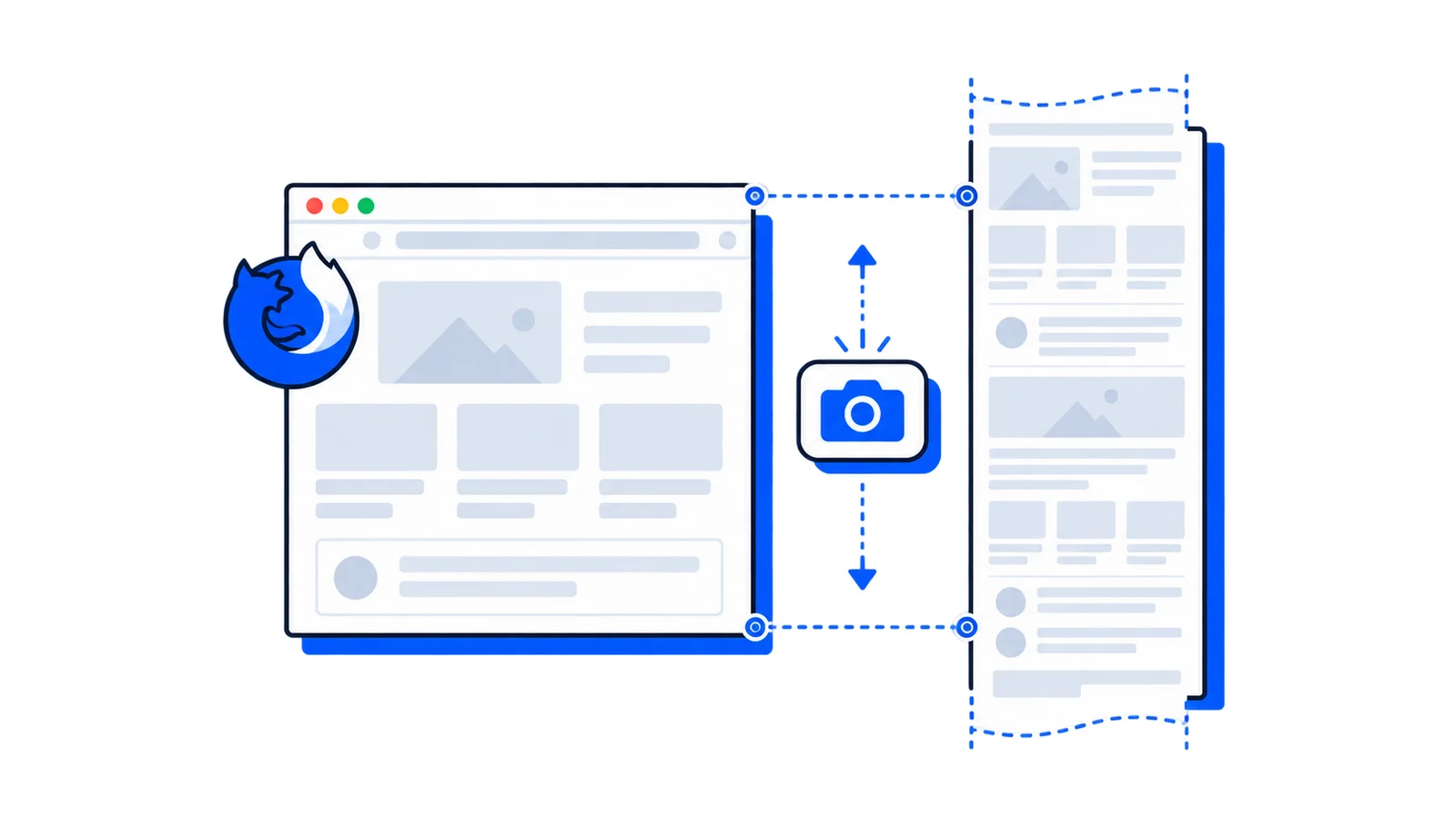
Firefox makes full page screenshots easy — no developer tools or extensions needed. There's a keyboard shortcut and a right-click option.
Keyboard Shortcut (Fastest)
Press Ctrl+Shift+S (Windows/Linux) or Cmd+Shift+S (Mac)
Click "Save full page"
Choose Download or Copy to clipboard
That's it. Three seconds, done.
Right-Click Method
Right-click anywhere on the page
Select "Take Screenshot"
Click "Save full page" in the top-right
Download or copy to clipboard
What You Can Capture
Firefox gives you a few options when taking screenshots:
Save full page — the entire scrollable page
Save visible — just what's on screen
Click and drag — select a custom area
Hover and click — capture a specific element
All screenshots save as PNG files.
Good to Know
Works great on: Most websites, articles, documentation, landing pages.
Doesn't work perfectly on: Pages with lazy-loading images (scroll through first), web apps with internal scrolling (Gmail, Twitter), PDFs viewed in Firefox.
Firefox has the easiest full page screenshot of any major browser — no need to dig through menus or developer tools.
Automate screenshots with an API
Firefox's built-in tool is convenient for occasional captures. For recurring screenshots or automation workflows, a dedicated API saves time.