Find out how easy it is to capture and share pixel-perfect screenshots at scale using Allscreenshots. Sign up for a free account and start integrating your first screenshot API call today.
RT
Riley Thompson
Developer advocate focused on web tooling, screenshot APIs, and helping teams ship better visual experiences.
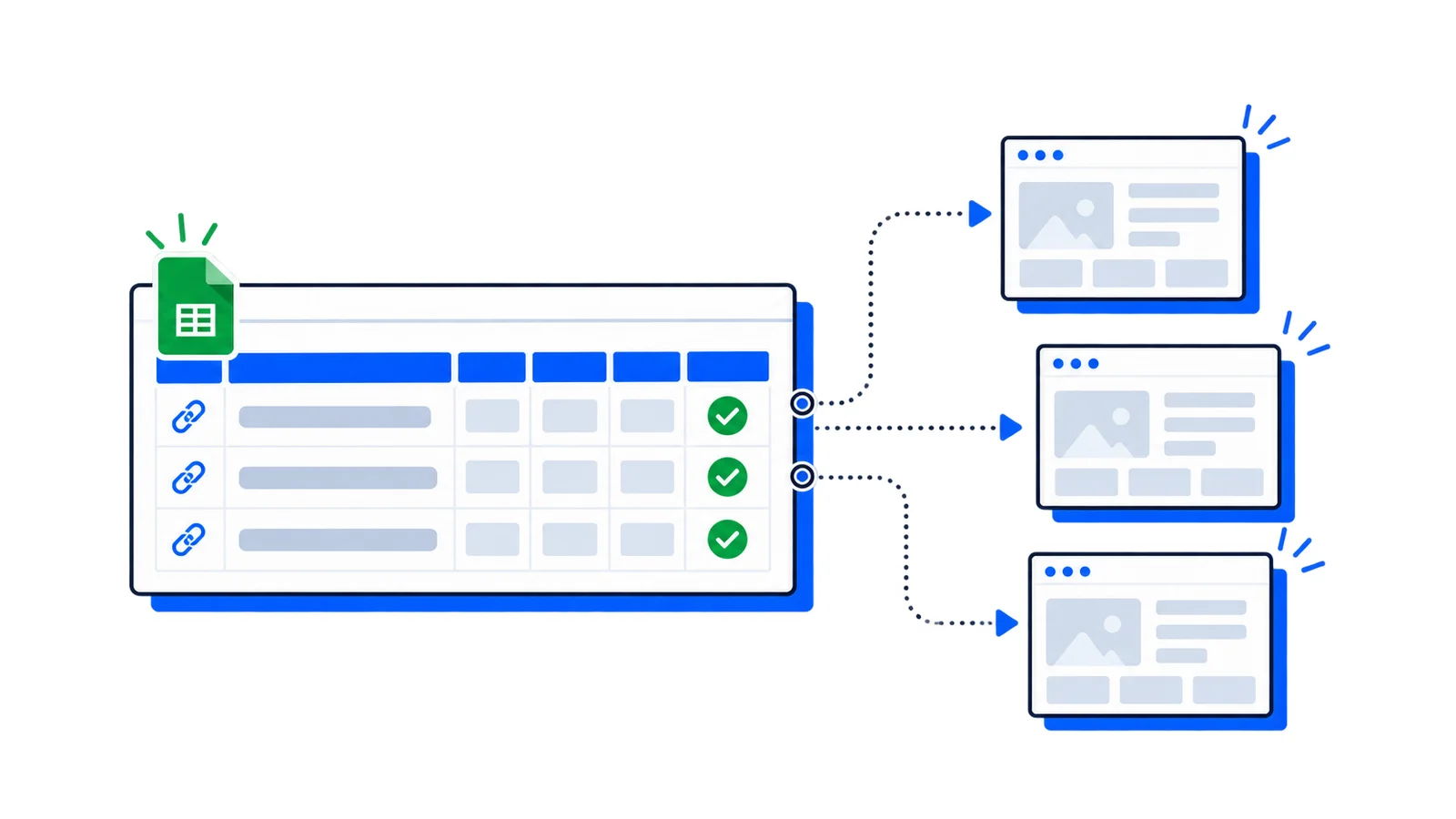
Google Sheets is the easiest way to batch-capture website screenshots. List your URLs in column A, run a script, and get screenshot links in column B. No servers, no installs, no dependencies.
What you'll build
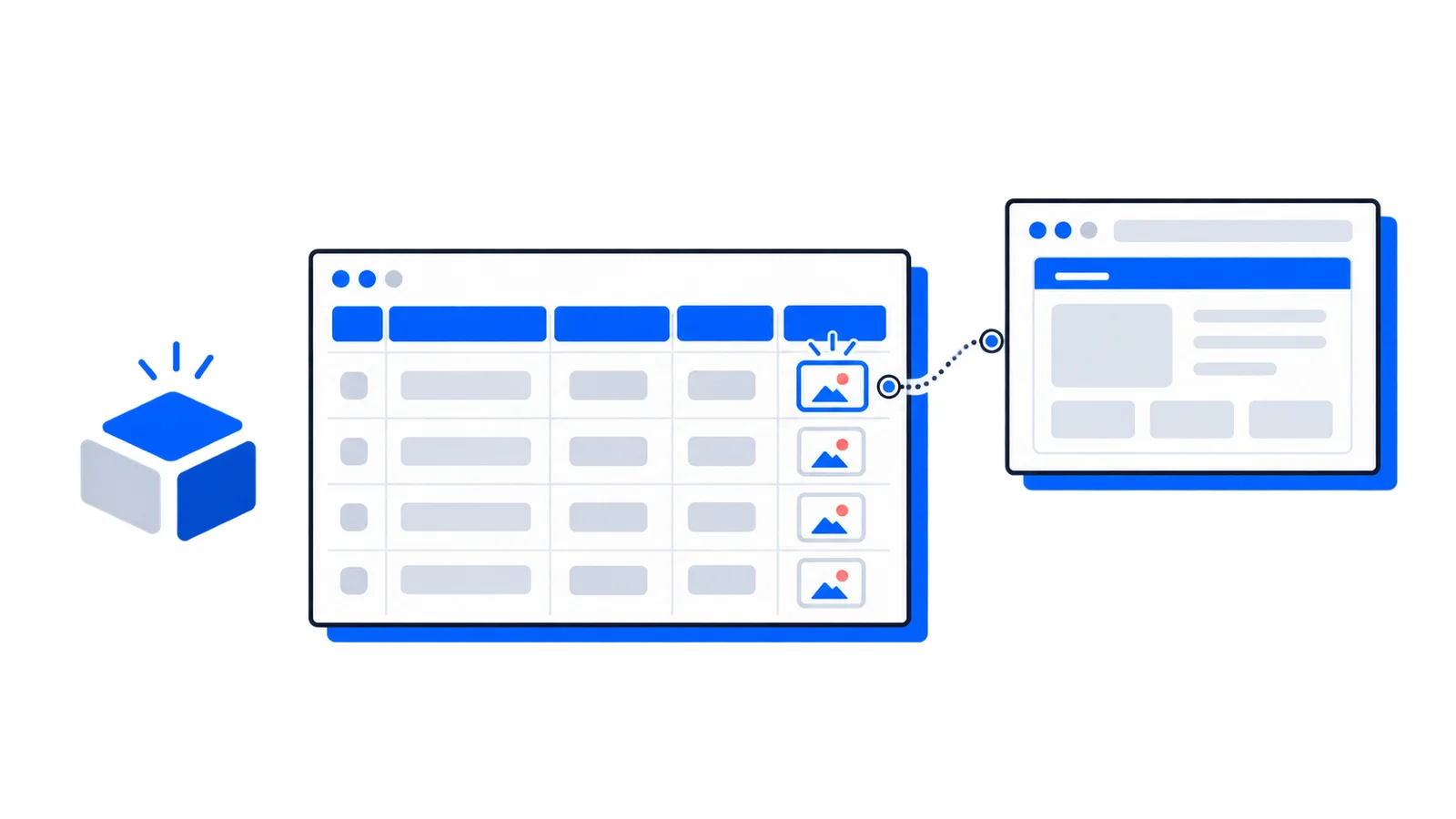
A Google Apps Script that reads URLs from your spreadsheet, captures a screenshot of each one via the Allscreenshots API, and writes the screenshot URL back to the sheet. You can also display thumbnails directly in cells.
Column A is where you put your URLs. Columns B and C will be filled by the script.
Step 2: Open Apps Script
Go to Extensions → Apps Script. This opens the script editor.
Delete any existing code and paste:
functioncaptureScreenshots(){constAPI_KEY=PropertiesService.getScriptProperties().getProperty('SCREENSHOT_API_KEY');if(!API_KEY){SpreadsheetApp.getUi().alert('API key not set. Go to Project Settings > Script Properties and add SCREENSHOT_API_KEY.');return;}const sheet =SpreadsheetApp.getActiveSpreadsheet().getActiveSheet();const lastRow = sheet.getLastRow();if(lastRow <2){SpreadsheetApp.getUi().alert('No URLs found. Add URLs starting in cell A2.');return;}const urls = sheet.getRange(2,1, lastRow -1,1).getValues().flat();let captured =0;for(let i =0; i < urls.length; i++){const url = urls[i];if(!url)continue;try{const response =UrlFetchApp.fetch('https://api.allscreenshots.com/v1/screenshots',{method:'post',headers:{'X-API-Key':API_KEY,'Content-Type':'application/json',},payload:JSON.stringify({url: url,fullPage:true,responseType:'url',viewport:{width:1280,height:800},blockAds:true,}),});const result =JSON.parse(response.getContentText());const row = i +2;// Column B: Screenshot URL sheet.getRange(row,2).setValue(result.storageUrl);// Column C: Thumbnail using IMAGE formula sheet.getRange(row,3).setFormula('=IMAGE("'+ result.storageUrl+'", 1)'); captured++;}catch(error){ sheet.getRange(i +2,2).setValue('Error: '+ error.message);}}SpreadsheetApp.getUi().alert('Done! Captured '+ captured +' screenshots out of '+ urls.length+' URLs.');}
Step 3: Store your API key
In the Apps Script editor:
Click the gear icon (Project Settings) in the left sidebar
Scroll to Script Properties
Click Add script property
Property: SCREENSHOT_API_KEY
Value: your API key from the Allscreenshots dashboard
This keeps your API key out of the code.
Step 4: Run the script
Back in the script editor, click Run → select captureScreenshots. The first time, you'll need to authorize the script to access your spreadsheet and make external requests.
After authorization, the script processes each URL and fills in columns B and C.
Displaying thumbnails
The script uses the =IMAGE() formula to display thumbnails directly in cells. To make them look good:
Select column C
Right-click → Resize column → set to 300px
Select all data rows → right-click → Resize rows → set to 200px
Now you'll see visual thumbnails of every website right in your spreadsheet.
Scheduling automatic captures
To recapture screenshots on a schedule:
In Apps Script, click the clock icon (Triggers) in the left sidebar
Click Add Trigger
Function: captureScreenshots
Event source: Time-driven
Type: Day timer (or weekly, hourly, etc.)
Time: pick your preferred time
The script will now run automatically and update all screenshots.
Handling large batches
Google Apps Script has a 6-minute execution time limit. For large URL lists:
functioncaptureScreenshotsBatch(){constAPI_KEY=PropertiesService.getScriptProperties().getProperty('SCREENSHOT_API_KEY');const sheet =SpreadsheetApp.getActiveSpreadsheet().getActiveSheet();const lastRow = sheet.getLastRow();for(let i =1; i < lastRow; i++){const url = sheet.getRange(i +1,1).getValue();const existing = sheet.getRange(i +1,2).getValue();// Skip rows that already have screenshotsif(!url || existing)continue;try{const response =UrlFetchApp.fetch('https://api.allscreenshots.com/v1/screenshots',{method:'post',headers:{'X-API-Key':API_KEY,'Content-Type':'application/json',},payload:JSON.stringify({ url,fullPage:true}),});const result =JSON.parse(response.getContentText()); sheet.getRange(i +1,2).setValue(result.storageUrl);}catch(error){// Stop if we're running out of timeif(error.message.includes('time'))break; sheet.getRange(i +1,2).setValue('Error');}}}
This version skips rows that already have screenshots, so you can run it multiple times to process large lists incrementally.
Wrapping up
Google Sheets plus Allscreenshots is a simple, powerful way to batch-capture website screenshots. No servers to manage, no browser infrastructure, and the familiar spreadsheet interface your team already knows.
If you are replacing an existing provider, review the ScreenshotOne comparison or Urlbox comparison for current pricing sources, capture settings and a migration checklist. API authentication explains how to keep your key on the server.