Find out how easy it is to capture and share pixel-perfect screenshots at scale using Allscreenshots. Sign up for a free account and start integrating your first screenshot API call today.
RT
Riley Thompson
Developer advocate focused on web tooling, screenshot APIs, and helping teams ship better visual experiences.
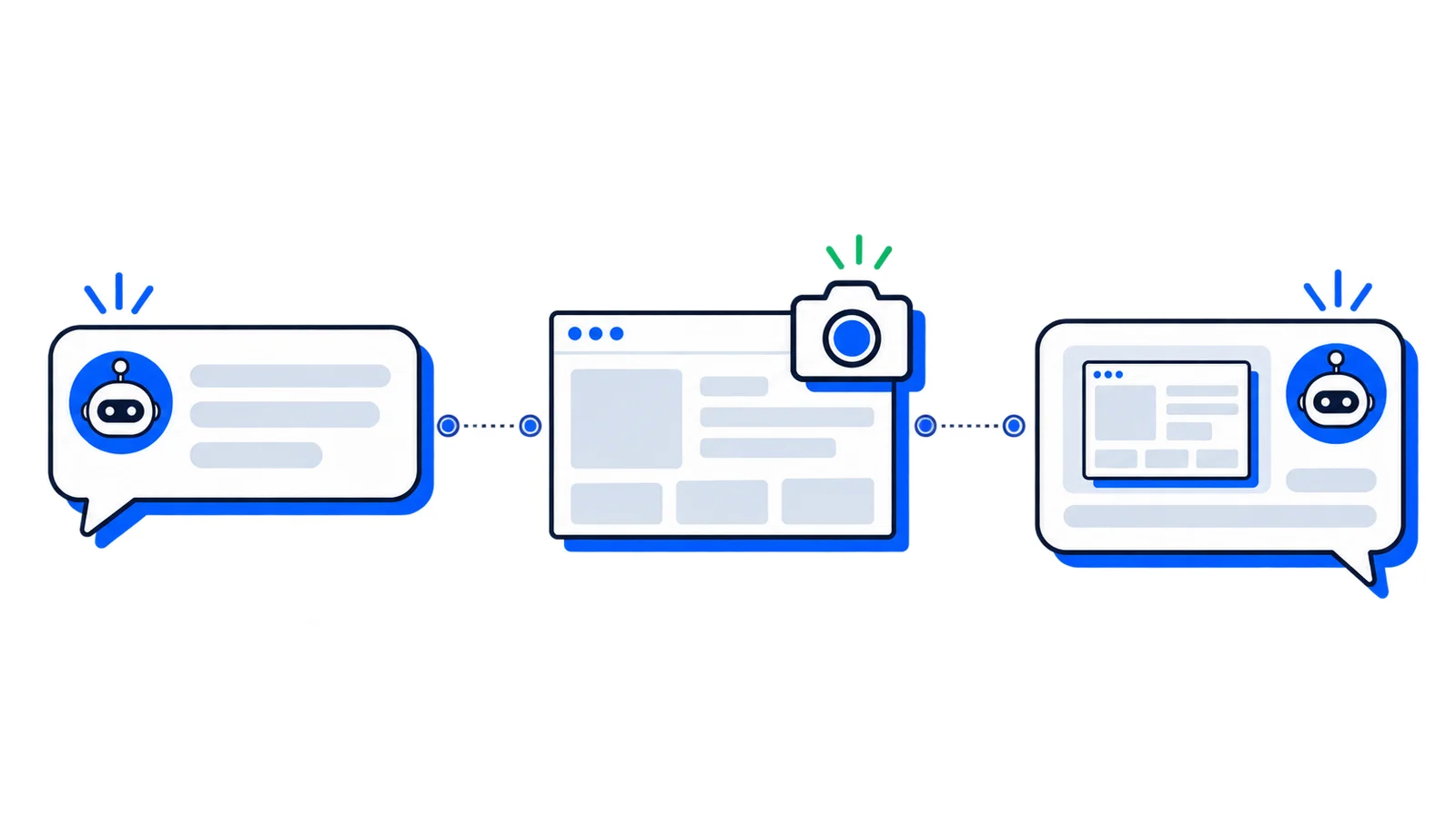
OpenClaw is the popular open-source AI agent that turns your local machine into a personal assistant you control from WhatsApp, Telegram, Slack, or Discord. By adding a screenshot skill, you can capture any website with a chat message — no headless browsers, no Puppeteer setup, no local Chrome dependency.
This tutorial shows you how to create an OpenClaw skill that calls the Allscreenshots API to capture pixel-perfect website screenshots on demand.
A connected messaging platform (WhatsApp, Telegram, Slack, or Discord)
Step 1: Create the skill directory
OpenClaw skills live in ~/.openclaw/skills/. Each skill is a directory with a SKILL.md file inside. Create yours:
mkdir-p ~/.openclaw/skills/allscreenshots
Step 2: Add the SKILL.md
Create ~/.openclaw/skills/allscreenshots/SKILL.md with the following content. This follows the standard OpenClaw skill format — YAML frontmatter for metadata, then markdown instructions with concrete curl commands the agent can execute.
---name: allscreenshots
description: Take website screenshots, capture full pages, generate PDFs. Handles desktop, mobile, dark mode, stealth mode, cookie banner blocking, and batch URLs via the Allscreenshots cloud API.
version: 1.0.0
metadata:{"openclaw":{"emoji":"📸","requires":{"bins":["curl","jq"],"env":["ALLSCREENSHOTS_API_KEY"]},"primaryEnv":"ALLSCREENSHOTS_API_KEY"}}---# Allscreenshots – Website Screenshot Capture
Capture pixel-perfect website screenshots via the Allscreenshots
cloud API. No local browser needed.
## Setup1. Get an API key at https://dashboard.allscreenshots.com
2. Add to ~/.openclaw/workspace/.env:
ALLSCREENSHOTS_API_KEY=your_api_key_here
## API Base
Endpoint: https://api.allscreenshots.com/v1/screenshots
Auth header: X-API-Key: $ALLSCREENSHOTS_API_KEY
## Operations### Desktop screenshot (default)
curl -s -X POST \
-H "X-API-Key: $ALLSCREENSHOTS_API_KEY" \
-H "Content-Type: application/json" \
-d '{"url":"TARGET_URL","fullPage":true,"viewport":{"width":1280,"height":800},"blockAds":true,"blockCookieBanners":true,"responseType":"url"}' \
"https://api.allscreenshots.com/v1/screenshots" | jq
### Mobile screenshot
curl -s -X POST \
-H "X-API-Key: $ALLSCREENSHOTS_API_KEY" \
-H "Content-Type: application/json" \
-d '{"url":"TARGET_URL","fullPage":true,"viewport":{"width":375,"height":812},"deviceScaleFactor":3,"blockAds":true,"blockCookieBanners":true,"responseType":"url"}' \
"https://api.allscreenshots.com/v1/screenshots" | jq
### Bot-protected site
Add "stealthMode": true to capture a site behind Cloudflare or
similar bot detection. It's a Pro plan feature and slower than a
normal capture, so use it only when a site blocks the screenshot:
curl -s -X POST \
-H "X-API-Key: $ALLSCREENSHOTS_API_KEY" \
-H "Content-Type: application/json" \
-d '{"url":"TARGET_URL","stealthMode":true,"responseType":"url"}' \
"https://api.allscreenshots.com/v1/screenshots" | jq
### Dark mode
Add "darkMode": true to any request body above.
### PDF export
Add "format": "pdf" to any request body above.
### Viewport-only screenshot
Set "fullPage": false to capture only the visible viewport.
## Parameter Reference- fullPage: true captures the entire scrollable page
- blockAds: true removes ads and trackers
- blockCookieBanners: true hides cookie consent popups
- stealthMode: true captures bot-protected sites (Cloudflare, etc.) – Pro plan, slower, opt-in per request
- darkMode: true injects prefers-color-scheme: dark
- format: "pdf" returns a PDF instead of PNG
- responseType: controls what the API returns
- "binary" (default) – raw image bytes
- "base64" – JSON with base64-encoded image data
- "url" – JSON with a CDN link to the stored image
## Response
When responseType is "url" (recommended for OpenClaw):
{ "storageUrl": "https://storage.allscreenshots.com/abc.png" }
Send the storageUrl back to the user as an image.
When responseType is "binary" (default):
Raw image bytes. Pipe to a file with curl -o output.png
When responseType is "base64":
{ "data": "iVBORw0KGgo..." }
Base64 payload, useful for embedding in HTML or emails.
A few things to note about this skill:
The description is written as a trigger phrase — it describes the task the way you'd ask for it in chat, so OpenClaw knows when to activate it.
The metadata field declares dependencies (curl and jq must be installed) and the required environment variable. OpenClaw checks these before running the skill.
The body is a runbook with real curl commands. OpenClaw's agent reads these instructions and executes the commands directly — no wrapper code needed.
Step 3: Configure your API key
Add your Allscreenshots API key to the OpenClaw workspace environment:
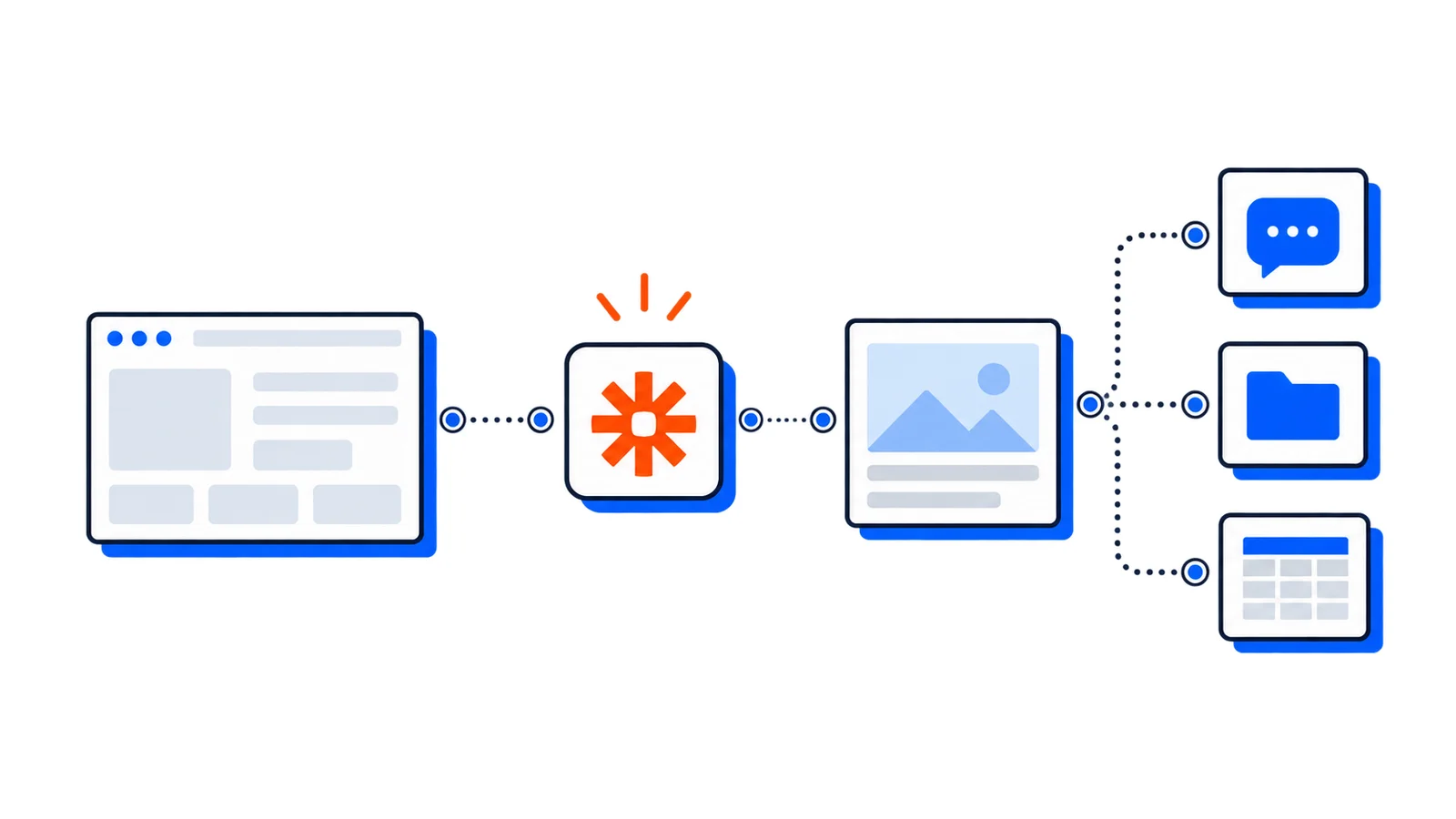
Match your request to the allscreenshots skill via the description
Extract the URL from your message
Run the desktop screenshot curl command with your URL
Parse the JSON response with jq
Return the screenshotUrl as an image in your chat
Advanced captures
Since the skill includes separate operations for each capture type, OpenClaw picks the right one based on your request:
You say
OpenClaw does
"Screenshot example.com"
Desktop full-page capture at 1280x800
"Screenshot example.com on mobile"
Mobile capture at 375x812, 3x scale
"Capture example.com in dark mode"
Adds darkMode: true to the request
"Save example.com as a PDF"
Sets format: "pdf" for PDF output
"Screenshot just the visible area"
Sets fullPage: false for viewport-only
"Capture that Cloudflare-protected site"
Adds stealthMode: true for bot-protected sites
Every request includes blockAds: true and blockCookieBanners: true by default, so you get clean screenshots without cookie popups or ads in the way. For the occasional site behind a bot-detection wall, the agent adds stealthMode: true (a Pro feature) — only when it's needed, since it's slower than a standard capture.
Batch URL processing
You can ask OpenClaw to process multiple URLs in one go:
OpenClaw will iterate through the list and return each screenshot.
Scheduled monitoring
OpenClaw supports cron scheduling for recurring tasks. Set up daily homepage monitoring:
Every morning at 9am, take a screenshot of https://mysite.com and send it here
OpenClaw creates a cron job that triggers the screenshot skill on schedule and delivers the result to your chat. This is useful for:
Visual monitoring — catch layout breakages before customers do
Competitor tracking — archive competitor sites over time
Compliance checks — scheduled captures for audit trails
Common use cases
Chat-triggered captures — send a URL in WhatsApp, get a screenshot back instantly
Daily competitor monitoring — schedule recurring captures of competitor sites
Bug reports — capture the current state of a page while discussing issues
Content archiving — full-page screenshots of articles, posts, or legal pages
Social previews — generate OG images for sharing on social platforms
Client reporting — scheduled screenshots of campaign landing pages
Wrapping up
With the Allscreenshots API powering your OpenClaw agent, you get reliable cloud-rendered screenshots without managing any browser infrastructure locally. The API handles full-page rendering, ad blocking, dark mode, mobile viewports, and more — all triggered by a chat message.