How to get alerted when a competitor changes their pricing page
Erik Lindqvist6 min read
Find out how easy it is to capture and share pixel-perfect screenshots at scale using Allscreenshots. Sign up for a free account and start integrating your first screenshot API call today.
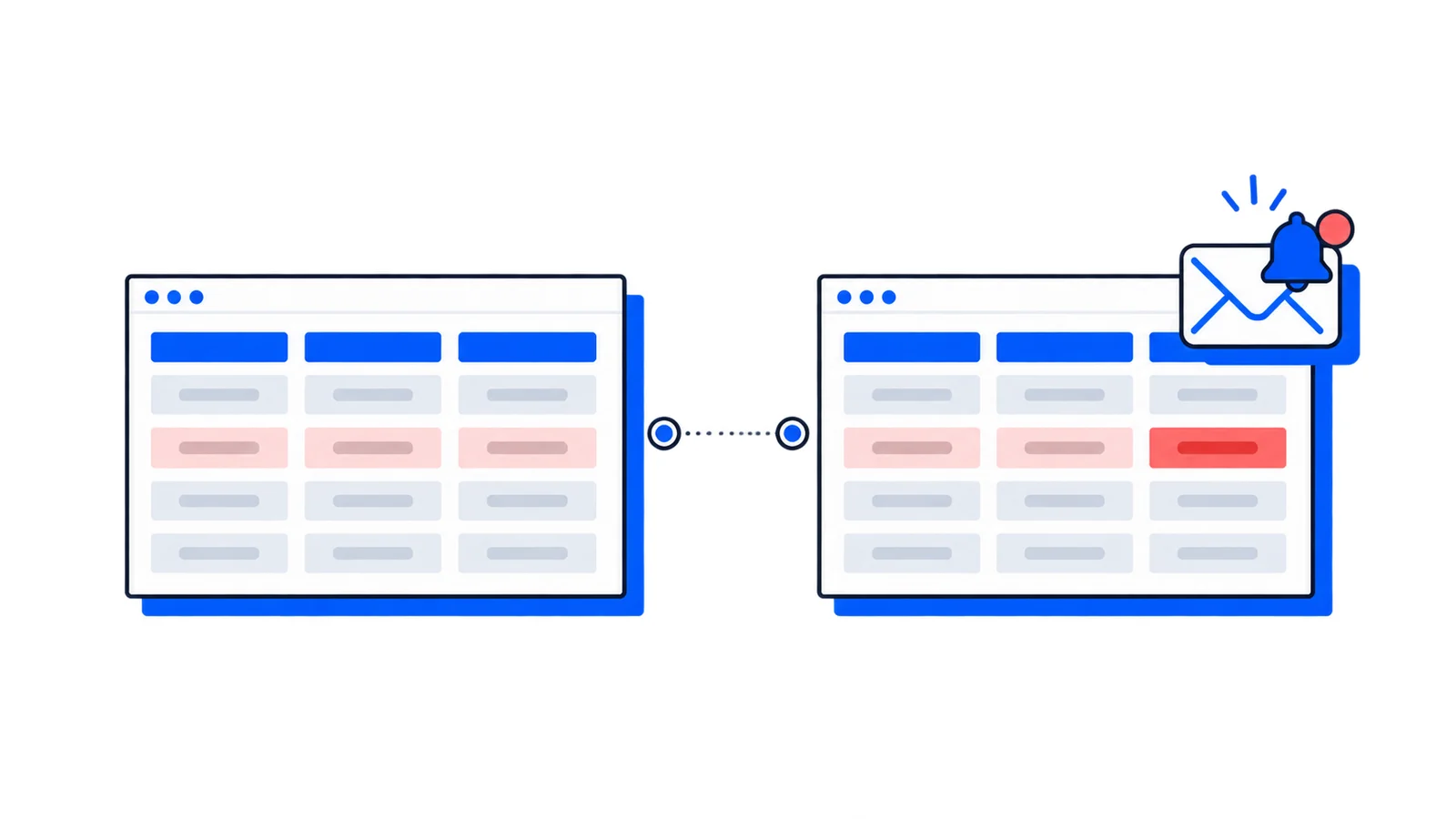
You want to know when a competitor changes their pricing. Checking their page by hand every morning doesn't scale, and you'll forget. Scraping the page is brittle the moment they restructure their HTML. What you usually want is simpler: a picture of the page, captured on a schedule, that emails you only when something is visibly different.
This walks through that in the AllScreenshots dashboard. Scheduling is free on every plan, and so is webhook delivery — the email alerts in this guide need a paid plan (Starter or above). It takes about five minutes and no code.
Step 1: Create a schedule
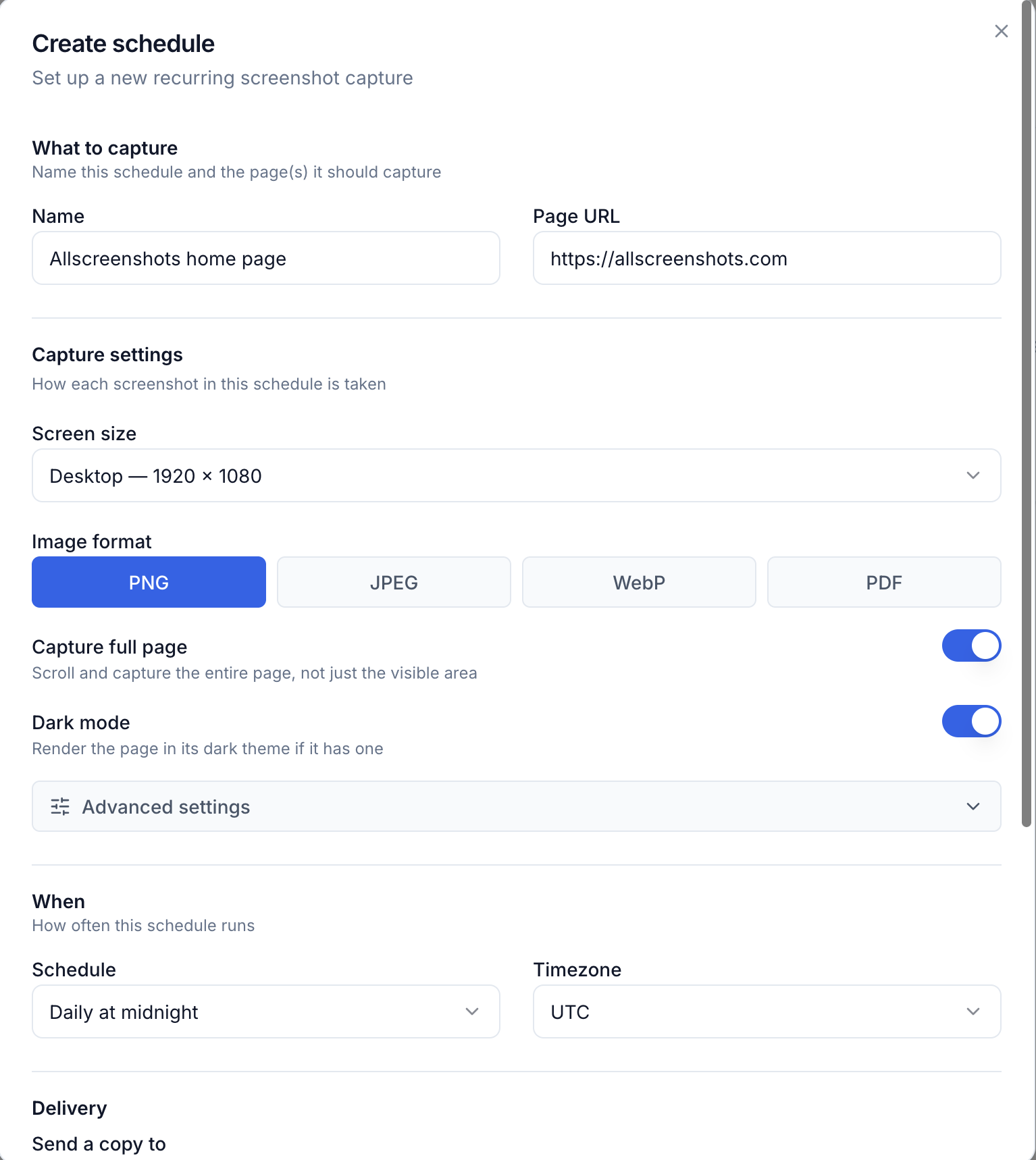
In the dashboard, open Schedules and click Create schedule. Give it a name you'll recognize and paste the competitor's pricing URL.
Everything for the schedule lives in one dialog.
Step 2: Set up the capture
Under Capture settings, turn on Capture full page so you get the whole pricing table, not just what's above the fold. Leave the screen size on desktop unless you specifically care about the mobile layout.
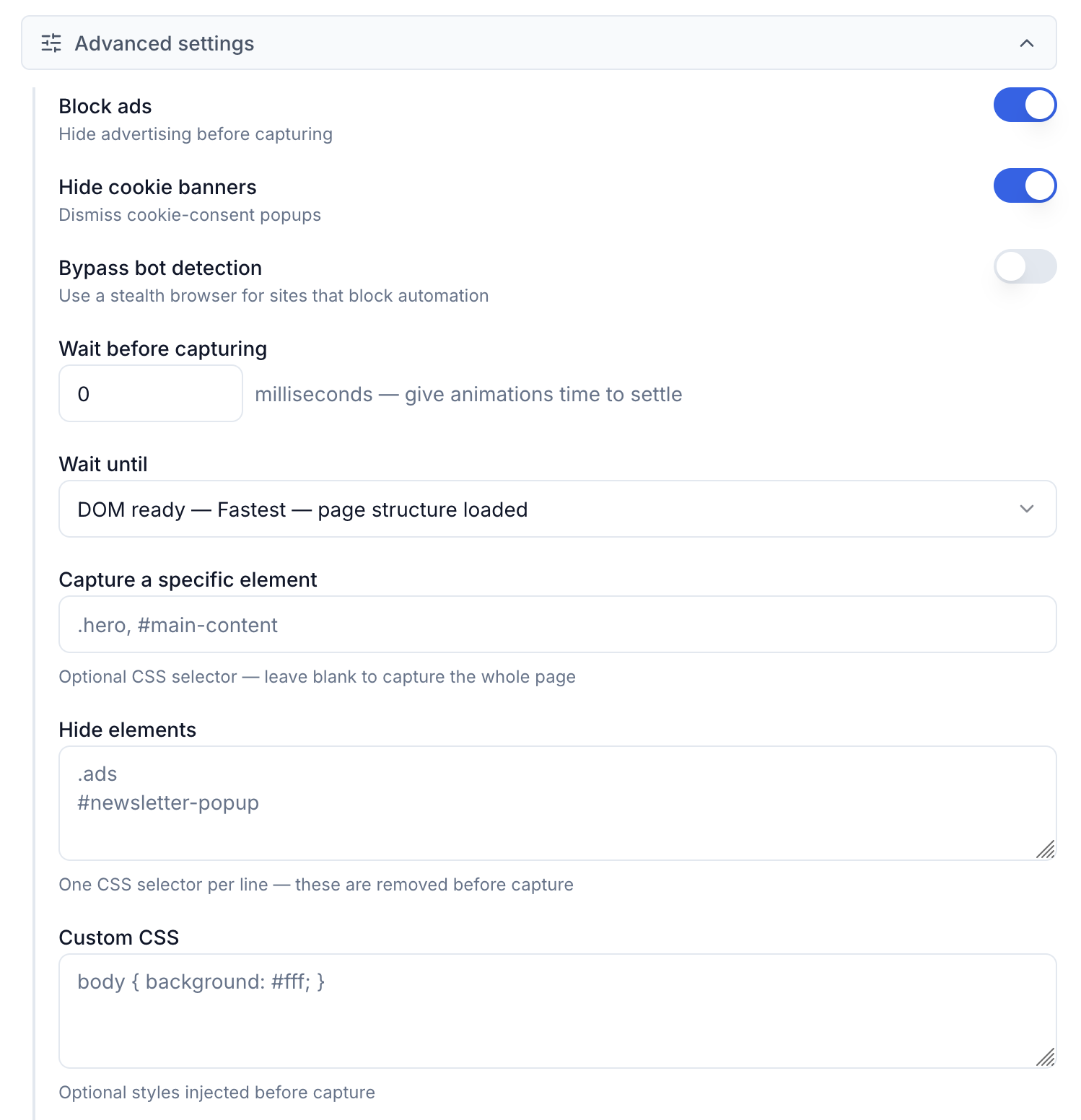
Pricing pages often load their tables a moment after the page first renders, and they tend to have moving parts that aren't pricing: a chat bubble, a cookie banner, a "limited time" countdown, a rotating testimonial. Open Advanced settings to handle both:
Set Wait until to a later load state, or add a small Wait before capturing delay, so the pricing table has rendered before the shot fires.
Use Hide elements to drop things that move on their own — one CSS selector per line. A pixel diff can't tell a countdown timer from a real price change, so hiding the obvious offenders keeps you from getting false alarms later.
Ad and cookie-banner blocking are already on by default here, which clears most of the usual clutter.
Advanced settings — wait conditions, hide elements, and blocking are all here.
Take one capture first to confirm it looks right before you leave it running.
Step 3: Pick how often
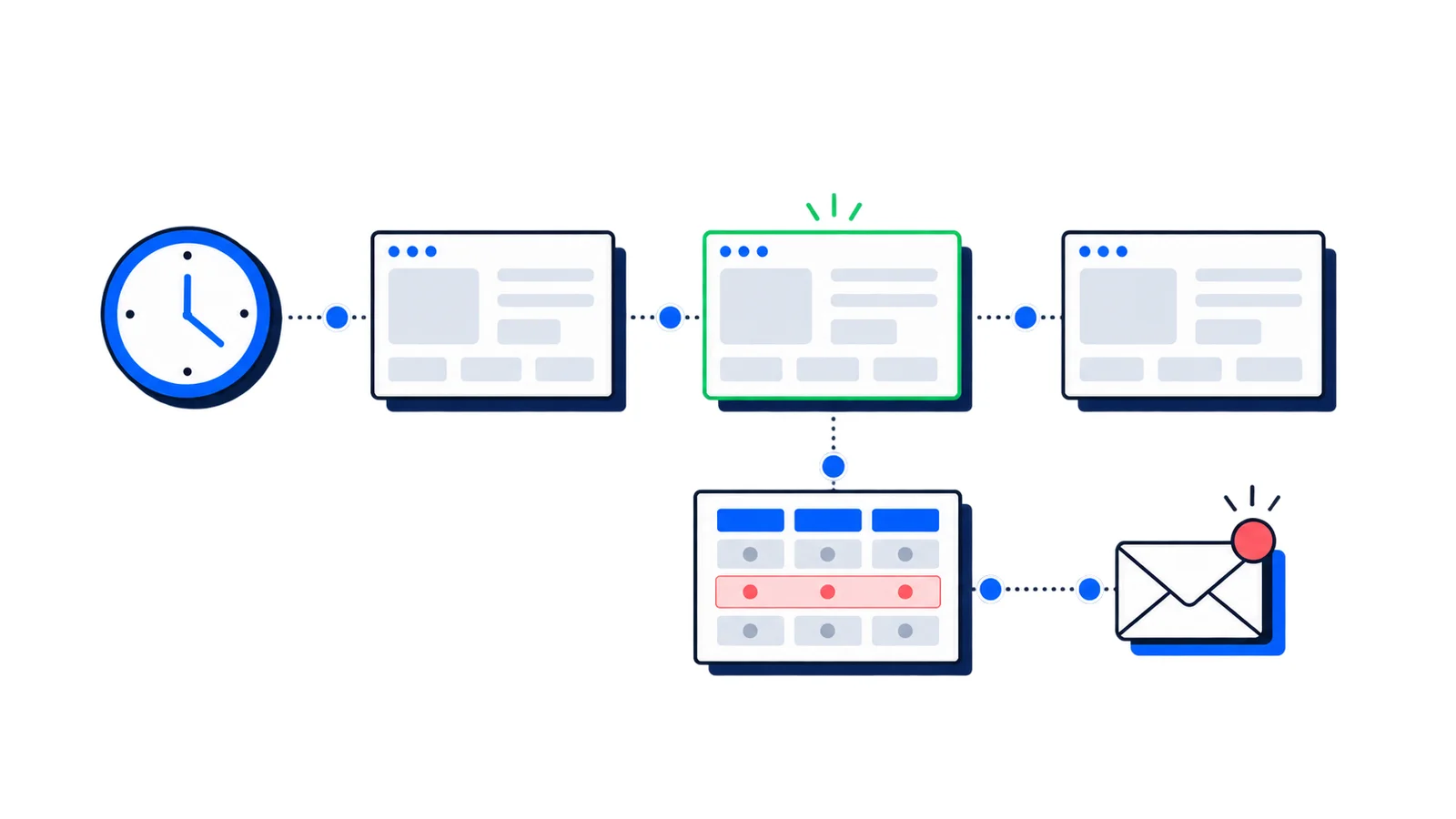
Under When, choose a cadence. Hourly is a reasonable default for pricing: frequent enough to catch a change the day it lands, not so frequent that you waste captures. Set the timezone so the timestamps match yours.
Step 4: Get emailed only when it changes
An hourly screenshot you have to open yourself is no better than checking manually. Two settings turn this into a real alert:
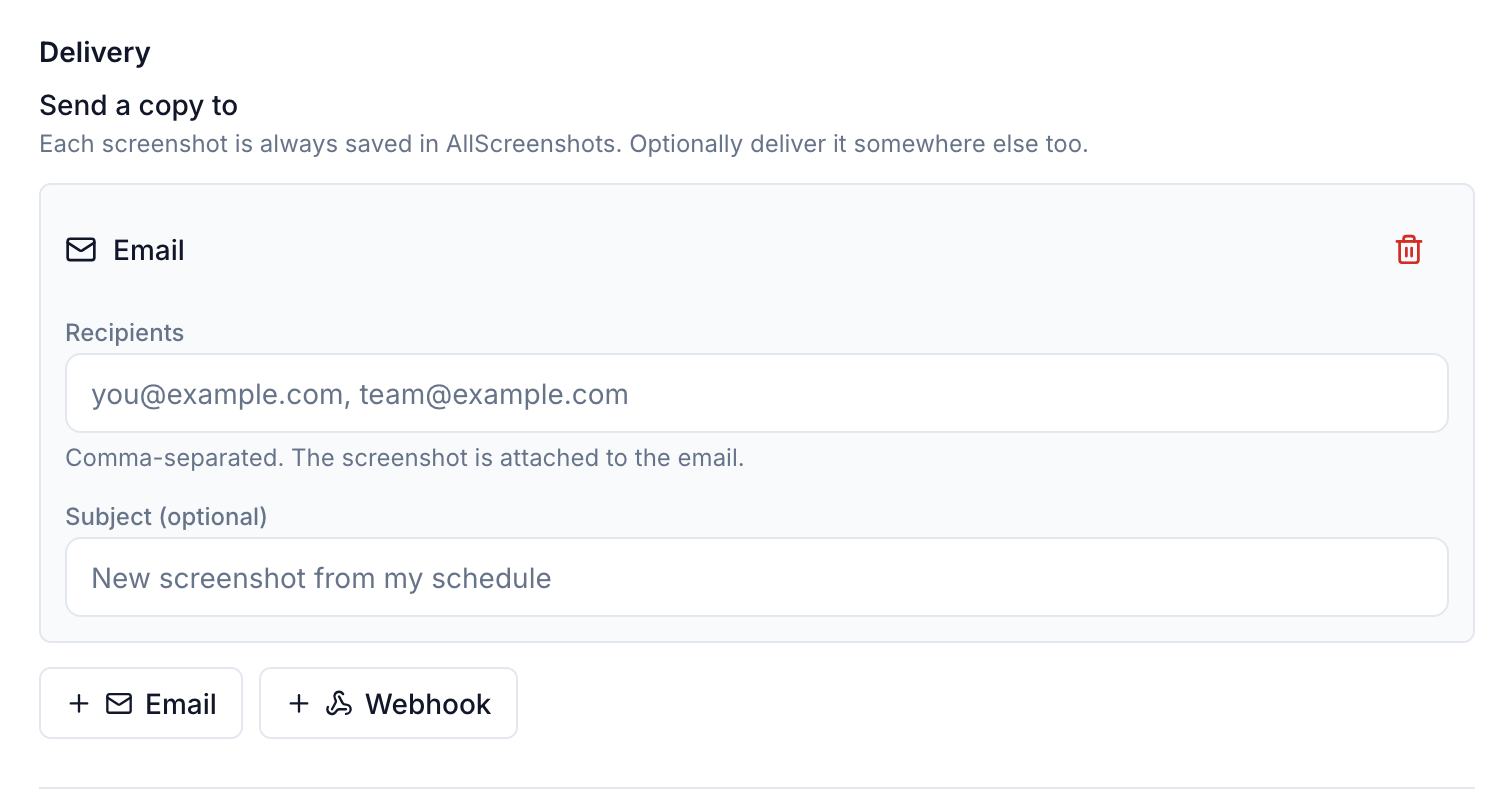
Add your email under Delivery. Click Email, enter one or more recipients, and optionally set a subject line. The screenshot arrives attached to the message.
Turn on only notify when the page changes. Now the schedule still captures every hour, but it only emails you when the new screenshot differs from the previous one.
Adding an email destination under Delivery. You can add several, or a webhook instead.
The sensitivity control decides how much has to change to count. Start at medium. If a competitor's page has a lot of incidental movement and you're getting pinged for nothing, lower the sensitivity; if you're worried about missing a small edit, raise it.
The first run has no previous capture to compare against, so it always counts as a change and sends one email. After that, you'll only hear from it on real changes.
Step 5: Confirm it's working
Save the schedule and it appears on your Schedules page with its next run, last run, and capture count. Use Trigger now from the schedule's menu to run it once immediately instead of waiting for the top of the hour, then check the run history.
Each run shows whether it succeeded, the captured image, and once there's a baseline, how much changed. That last number is useful for tuning: if real changes are scoring low but your sensitivity is set high, you'll miss them.
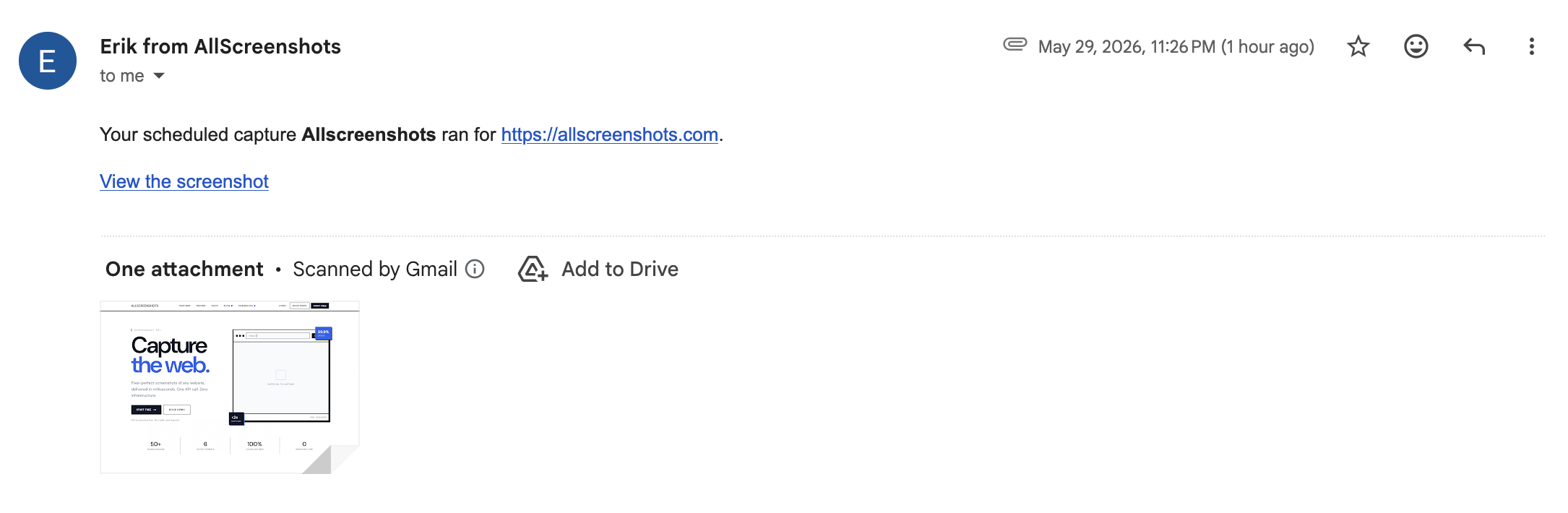
The email itself lands with the screenshot attached and a link back to view it, so you can tell at a glance what changed without opening the dashboard.
What arrives in your inbox: the capture attached, plus a link to view it.
A couple of things to know
Change detection is visual, not semantic. It tells you the page looks different, not what the new price is. When you get the alert, open the screenshot to see what moved. If you need the actual price as a value, you'd extract it directly — see multiple outputs.
Every run counts against your monthly screenshot quota, so an hourly schedule uses roughly 720 captures a month. If a competitor rarely touches their pricing, a few times a day is plenty and far cheaper.
Doing it in bulk
Setting up one or two of these by hand is the common case. If you're tracking dozens of competitors and would rather generate the schedules from a list, the API creates and manages the same schedules programmatically.
Where to go next
You now have a hands-off pricing watch that pings you only when there's something to look at. The same setup works for any page worth keeping an eye on: terms of service, a feature page, a status page, a partner site. Point a schedule at it, turn on change detection, and pick a destination.
 Announcement
 Tutorial
 Tutorial