Find out how easy it is to capture and share pixel-perfect screenshots at scale using Allscreenshots. Sign up for a free account and start integrating your first screenshot API call today.
RT
Riley Thompson
Developer advocate focused on web tooling, screenshot APIs, and helping teams ship better visual experiences.
If you're tracking websites in Airtable — competitors, clients, portfolio links, or anything else — you've probably wished you could see what those sites actually look like without clicking every URL. In this tutorial, you'll set up automatic screenshot capture for every URL in your Airtable base.
What you'll build
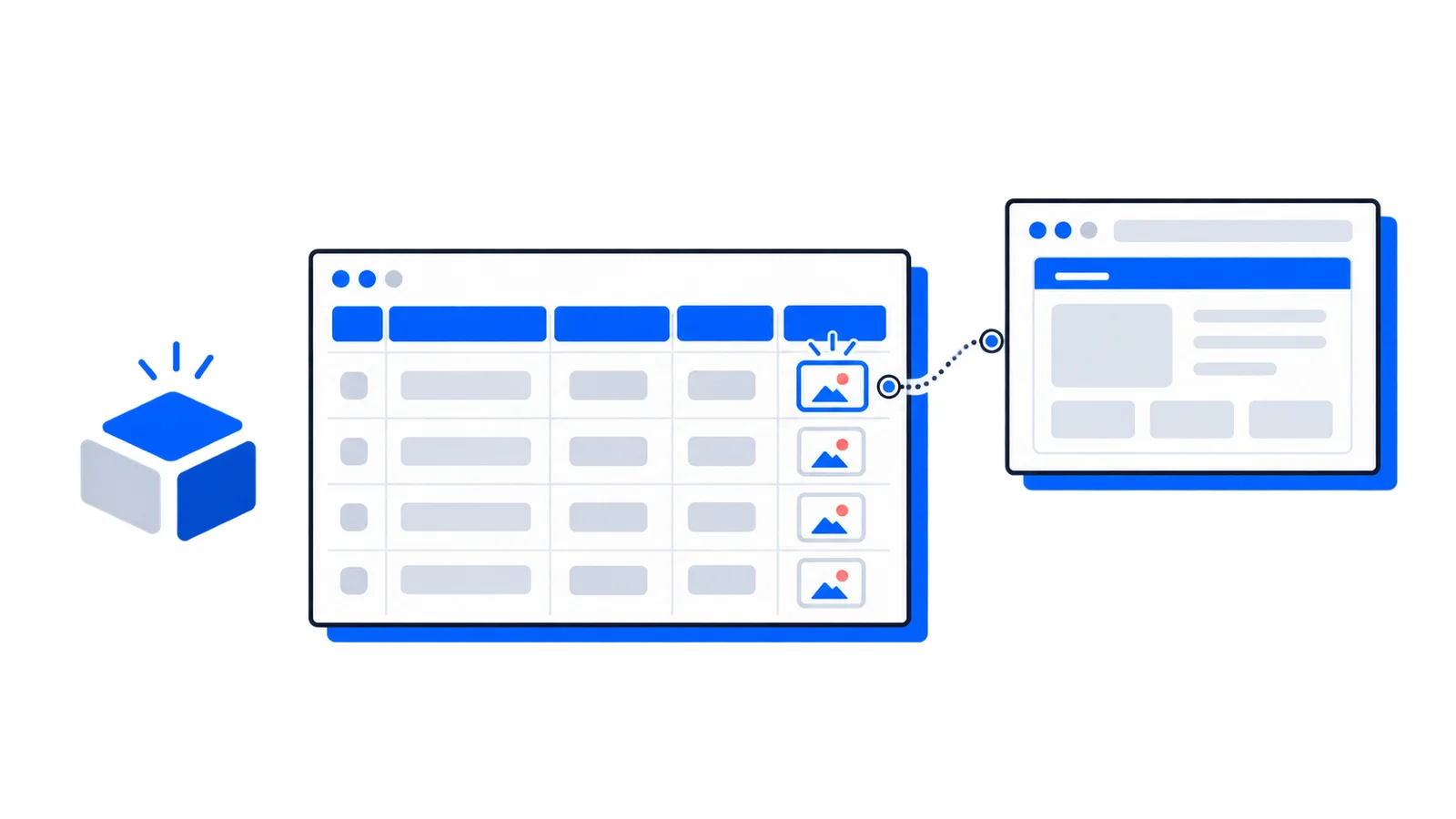
An Airtable automation that takes a URL from any record and captures a pixel-perfect screenshot, saving it as an attachment in the same record. The whole thing runs on Airtable's built-in scripting — no external server needed.
An Airtable base with a table that has a URL field
Step 1: Set up your Airtable base
Create a table with at least two fields:
URL (URL field type) — the website you want to capture
Screenshot (Attachment field type) — where the screenshot will be saved
You can add these fields to an existing table or create a new one.
Step 2: Create an automation
Go to the Automations tab in your Airtable base and create a new automation.
For the trigger, choose When a record is created or When a record is updated depending on your workflow. Select your table and optionally add a condition to only trigger when the URL field is not empty.
Step 3: Add the scripting action
Add an action step and choose Run a script. Add an input variable called url mapped to the URL field from the trigger record, and another called recordId mapped to the record ID.
Paste this script:
constAPI_KEY='YOUR_API_KEY';// Replace with your Allscreenshots API keyconst url = input.config().url;const recordId = input.config().recordId;if(!url){console.log('No URL provided, skipping');return;}const response =awaitfetch('https://api.allscreenshots.com/v1/screenshots',{method:'POST',headers:{'X-API-Key':API_KEY,'Content-Type':'application/json',},body:JSON.stringify({url: url,fullPage:true,responseType:'url',viewport:{width:1280,height:800},blockAds:true,}),});const result =await response.json();const table = base.getTable('Websites');// Replace with your table nameawait table.updateRecordAsync(recordId,{'Screenshot':[{url: result.storageUrl}],});console.log(`Screenshot captured for ${url}`);
Replace YOUR_API_KEY with your actual API key from the Allscreenshots dashboard, and update the table name if yours is different.
Step 4: Test the automation
Add a new record with a URL and watch the automation run. Within a few seconds, the Screenshot field should populate with a captured image.
Going further
Full-page vs viewport screenshots
By default, the script above captures a full-page screenshot. If you only want the visible portion, set fullPage to false:
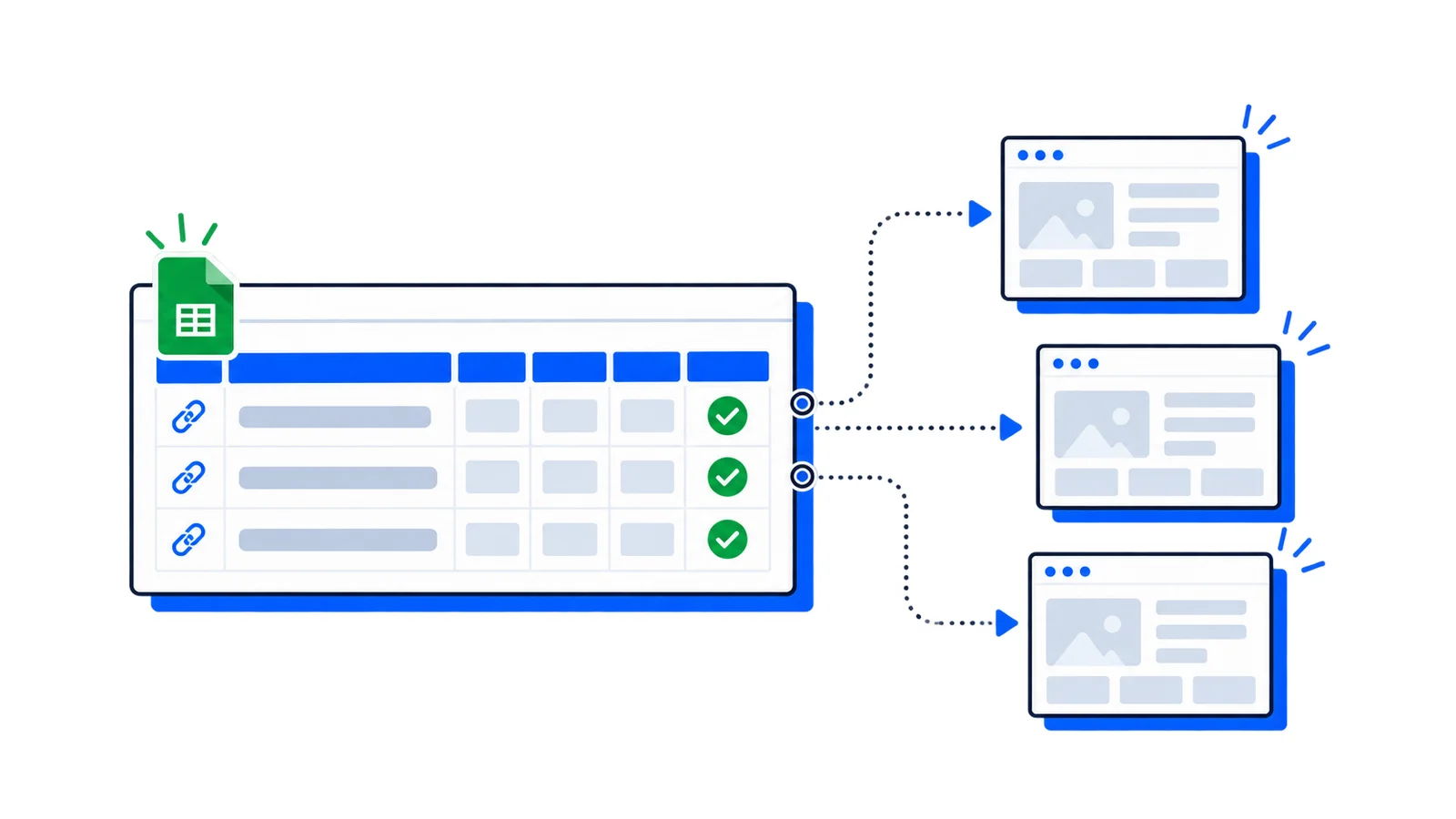
If you already have records with URLs and want to backfill screenshots, create a separate automation with a When button is pressed trigger, or use the Airtable scripting extension to loop through all records:
constAPI_KEY='YOUR_API_KEY';const table = base.getTable('Websites');const query =await table.selectRecordsAsync({fields:['URL','Screenshot'],});for(const record of query.records){const url = record.getCellValueAsString('URL');const existingScreenshot = record.getCellValue('Screenshot');if(!url || existingScreenshot)continue;const response =awaitfetch('https://api.allscreenshots.com/v1/screenshots',{method:'POST',headers:{'X-API-Key':API_KEY,'Content-Type':'application/json',},body:JSON.stringify({ url,fullPage:true}),});const result =await response.json();await table.updateRecordAsync(record.id,{'Screenshot':[{url: result.storageUrl}],});}
No-code alternative with Zapier
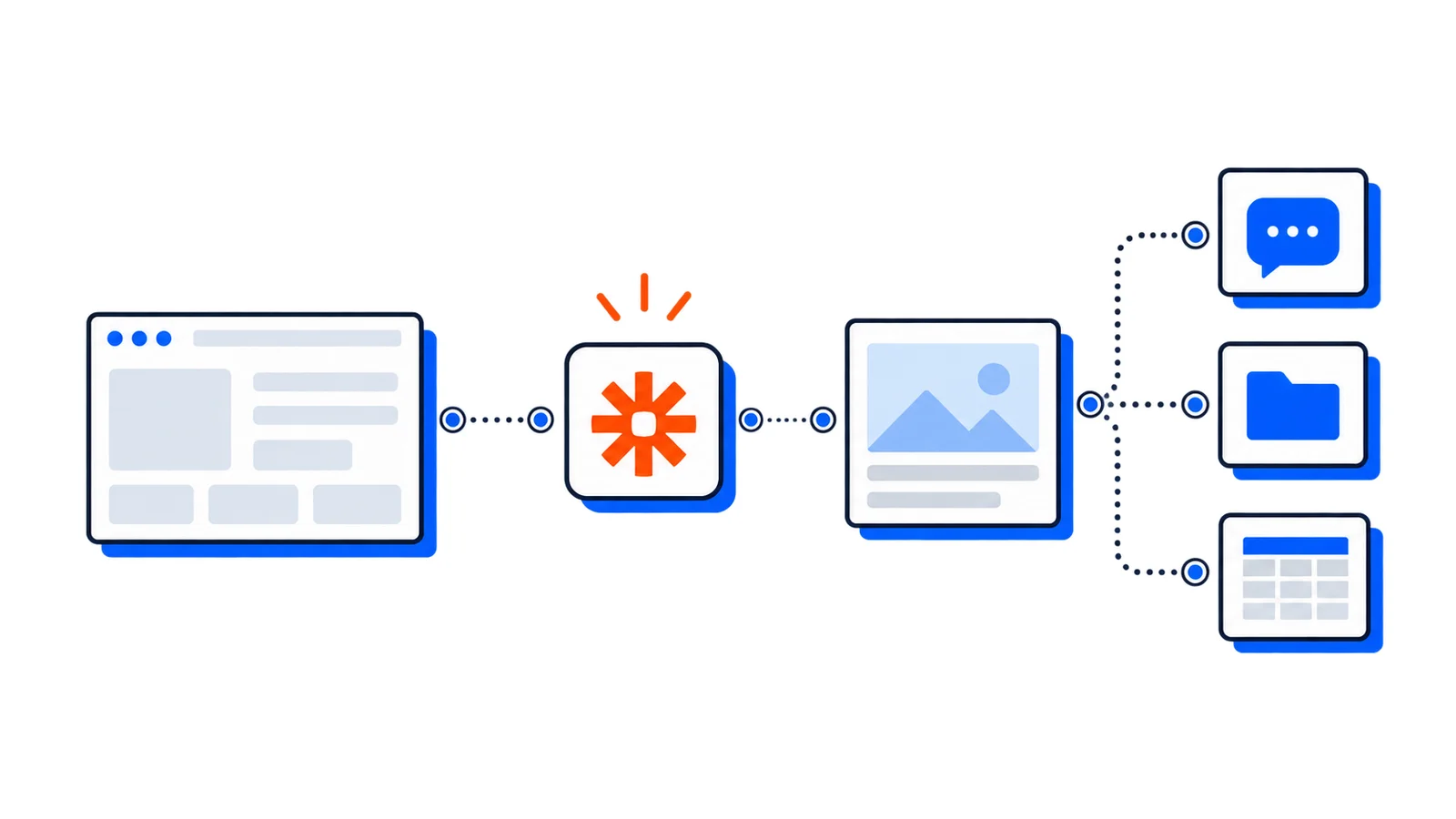
If you prefer a fully no-code approach, you can use Zapier to connect Allscreenshots to Airtable without writing any JavaScript. Set up a Zap with an Airtable trigger and a Webhooks action to call the API.
Wrapping up
With a few lines of code in Airtable scripting, you can automatically capture screenshots for every URL in your base. This works great for competitor tracking, client portfolios, content audits, and any workflow where seeing the actual website matters.