Safari Full-Page Screenshots: Mac and iPhone Methods
Taylor Brooks · Updated 6 min read
Find out how easy it is to capture and share pixel-perfect screenshots at scale using Allscreenshots. Sign up for a free account and start integrating your first screenshot API call today.
TB
Taylor Brooks
Frontend engineer and browser enthusiast with a passion for cross-platform testing and developer productivity.
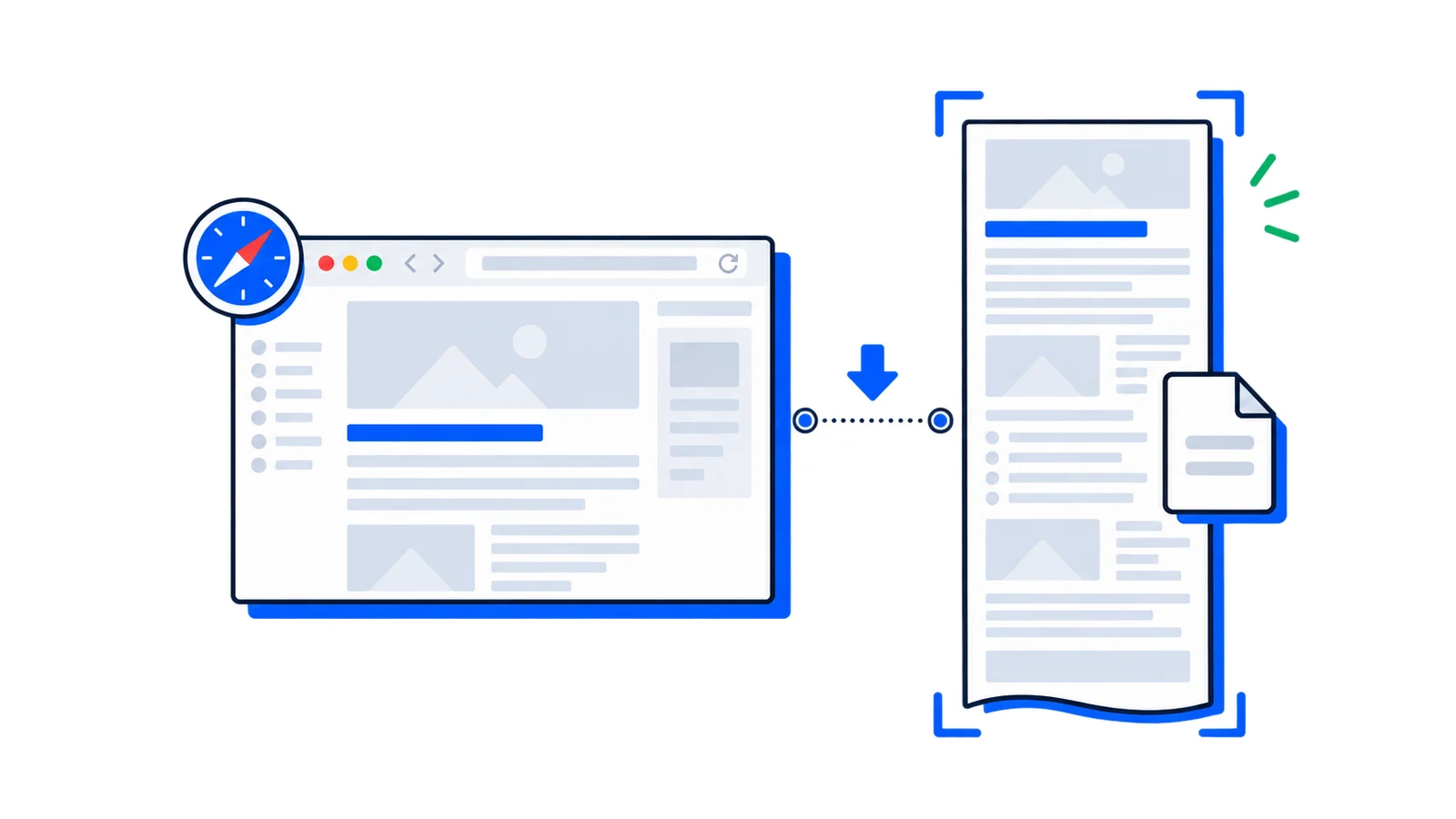
On a Mac, use Safari's Web Inspector to capture a page element as an image, or export the webpage as a PDF. On an iPhone, use the screenshot editor's Full Page option. The Mac screen-capture shortcuts only capture the visible screen.
Device and method
Output
Best use
Mac: Web Inspector, select the root element
PNG image
A long image of the rendered page
Mac: File → Export as PDF
PDF
Reading, sharing or archiving a document
iPhone: Full Page in the screenshot editor
Image in Photos or PDF in Files, depending on iOS
Capturing a Safari page from your phone
Mac: capture a PNG with Safari Web Inspector
Open Safari → Settings → Advanced and enable Show features for web developers. Older versions label this Show Develop menu in menu bar.
Open the webpage. Dismiss overlays you do not want in the image, then scroll to the bottom to load lazy-loaded content. Return to the top.
Choose Develop → Show Web Inspector, or press Option + Command + I.
Open the Elements tab. Find the document's outer <html> element. Select the root rather than a small child element if you want the whole page.
Control-click or right-click that element and choose Capture Screenshot. Save the image when Safari presents the save dialog.
Open the PNG and check the bottom of the page, image loading, and whether sticky elements obscure content.
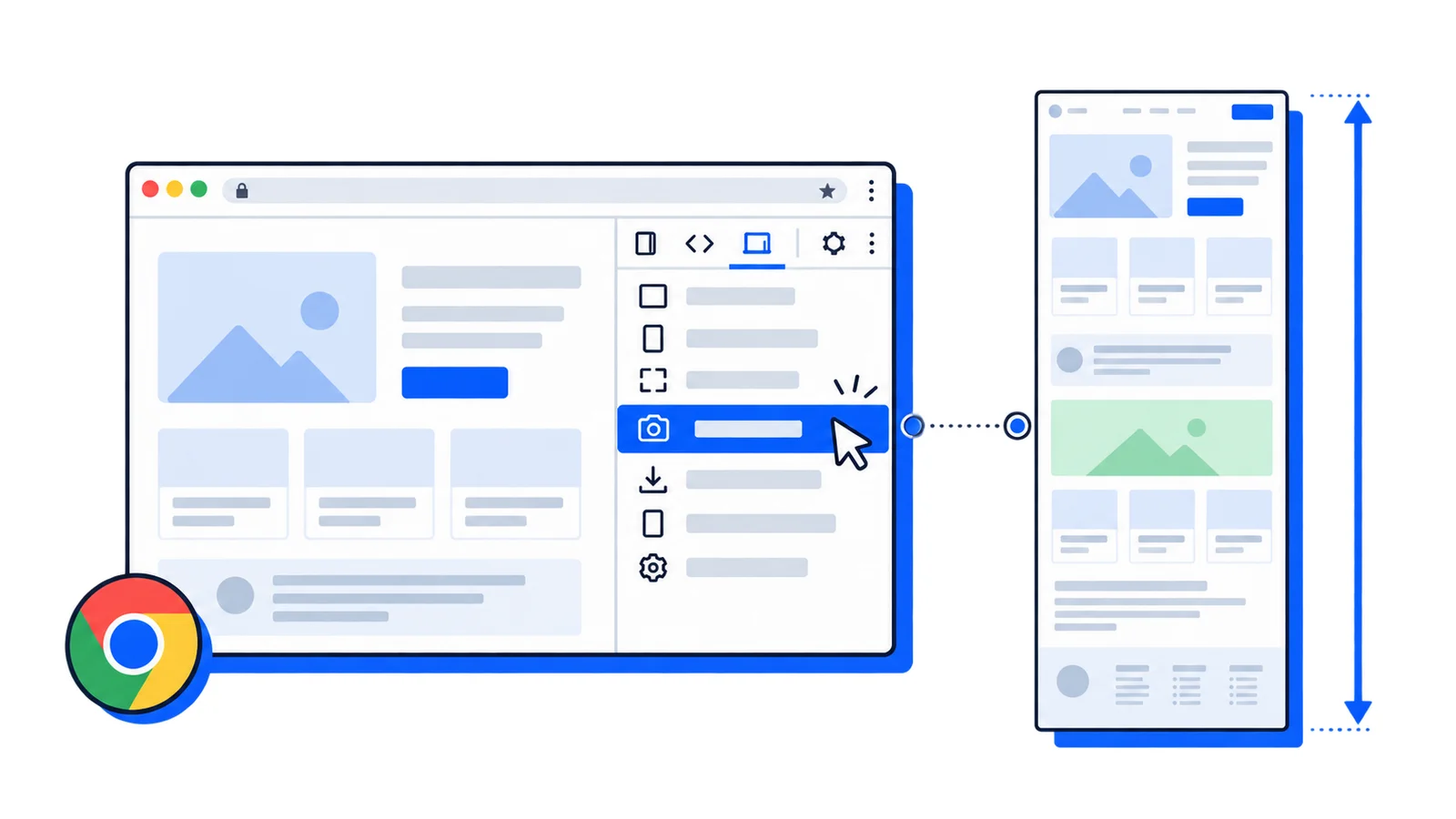
The WebKit inspector guide explains how to enable these developer tools. WebKit also documents console.screenshot() for capturing a node from its console. You can use console.screenshot(document.documentElement) if you prefer the console, but this requires running a command in the inspected page.
Version and verification notes
On October 8, 2026, we checked the developer-menu and Inspector setup in Safari 26.5 on macOS 26.5.1. The PNG export itself still needs a complete native Safari verification. The reproducible full-page image below was captured in Playwright 1.64.0's WebKit build on macOS, which is a different executable from Safari. Our cross-browser example includes its source and actual test results.
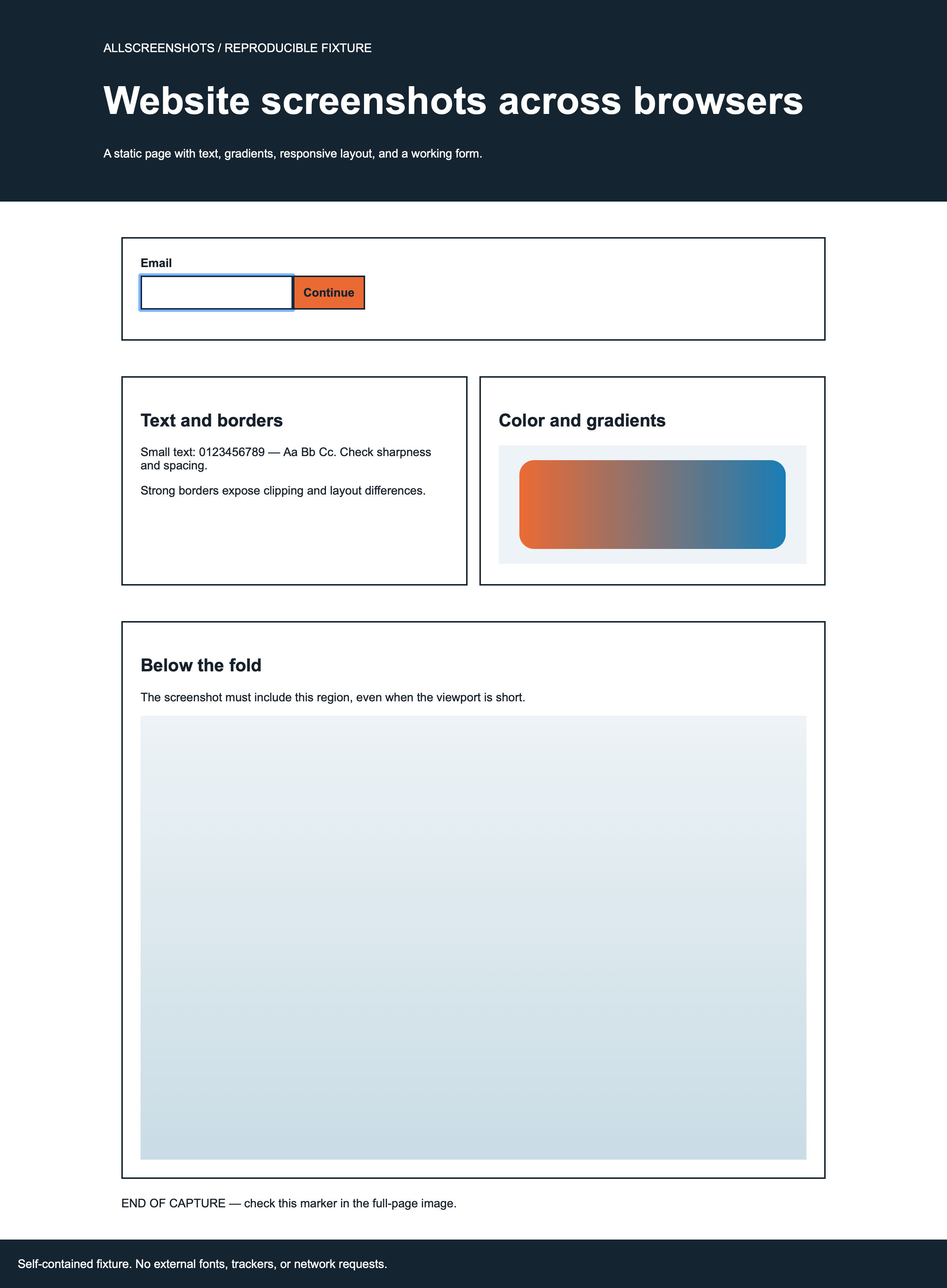
Full-page WebKit capture of a long test page, with text, gradient cards and a visible end marker
Output checklist: 1. The heading and form at the top should be present. 2. The text and gradient cards should not clip at the sides. 3. The “END OF CAPTURE” marker must appear at the bottom. This is an actual WebKit test output, not a screenshot of the Safari Inspector interface.
Use these three checks on your saved Safari image. A long image is not necessarily complete: content in nested scroll containers or virtualized lists can still be missing.
Mac: save the webpage as a PDF
For a document rather than a PNG, choose File → Export as PDF and save it. Safari may apply page layout differently from the on-screen webpage; check the saved file before sending it. Do not assume it always creates multiple pages or preserves every screen element.
File → Print → PDF → Save as PDF is another route when you want print layout and page settings. Preview can export an individual PDF page as an image, but that does not automatically stitch a multi-page document into one long PNG.
The iPhone workflow is separate from the Mac Inspector method. These steps follow Apple's iOS 26 screenshot guide; we have not tested them on a physical iPhone for this update.
Open the webpage in Safari and let its content load.
Press Side + Volume Up together. On an iPhone with a Home button, press Side + Home.
Open the screenshot editor if it does not open automatically, then choose Full Page.
Inspect the page preview and crop it if needed.
Use the save menu: choose Save to Photos for an image or Save PDF to Files for a PDF. Labels and options vary with iOS version.
If Full Page does not appear, confirm you are capturing a webpage in Safari and open the editor promptly. A normal screen image is still available even when a page cannot be captured in full.
Fix incomplete or awkward captures
Only a small region appears. In Inspector, select the root <html> element rather than a button, card or visible section. A scrolling frame inside the document may need a separate capture.
Images are missing. Scroll through the page and wait for loading to finish before capturing. Infinite-scroll and virtualized pages may never have all content present in the DOM at once.
There is extra whitespace. Check whether the site reserves height for unloaded content or embeds. Try selecting the main content element if you do not need the entire document.
Sticky headers cover content. Compare the image with the page at several scroll positions. Sites with fixed overlays can need a different capture method or explicit styling.
The saved PDF looks different. PDF export and print output can use different layouts. Choose PNG when you need a visual record of the rendered page; choose PDF when a document is the goal.
Command + Shift + 3 or 4 only captures the screen. Those are macOS screen-capture shortcuts and do not scroll the webpage. See our Mac screenshot methods.
Automate repeated full-page captures
For recurring reports or many URLs, use screenshot automation rather than repeating Inspector steps. This request saves a PNG from the Allscreenshots API:
curl --fail-with-body -X POST 'https://api.allscreenshots.com/v1/screenshots'\-H"X-API-Key: $SCREENSHOT_API_KEY"\-H'Content-Type: application/json'\-d'{"url":"https://example.com","fullPage":true,"format":"png"}'\-o screenshot.png
This is a hosted browser capture, not a remote session in your own Safari. Start with the full-page guide, or use scheduled captures for repeat work. Test on your target page before relying on it: overlays, lazy loading and access restrictions can affect any capture method.