Find out how easy it is to capture and share pixel-perfect screenshots at scale using Allscreenshots. Sign up for a free account and start integrating your first screenshot API call today.
Start capturing screenshots in minutes
Developers, marketers, and founders use Allscreenshots to automate website captures. No credit card required to get started.
A list of URLs is easy to submit. Once it is running, you need answers: how many screenshots are ready, which pages failed, what is still waiting, and how to stop the remaining work.
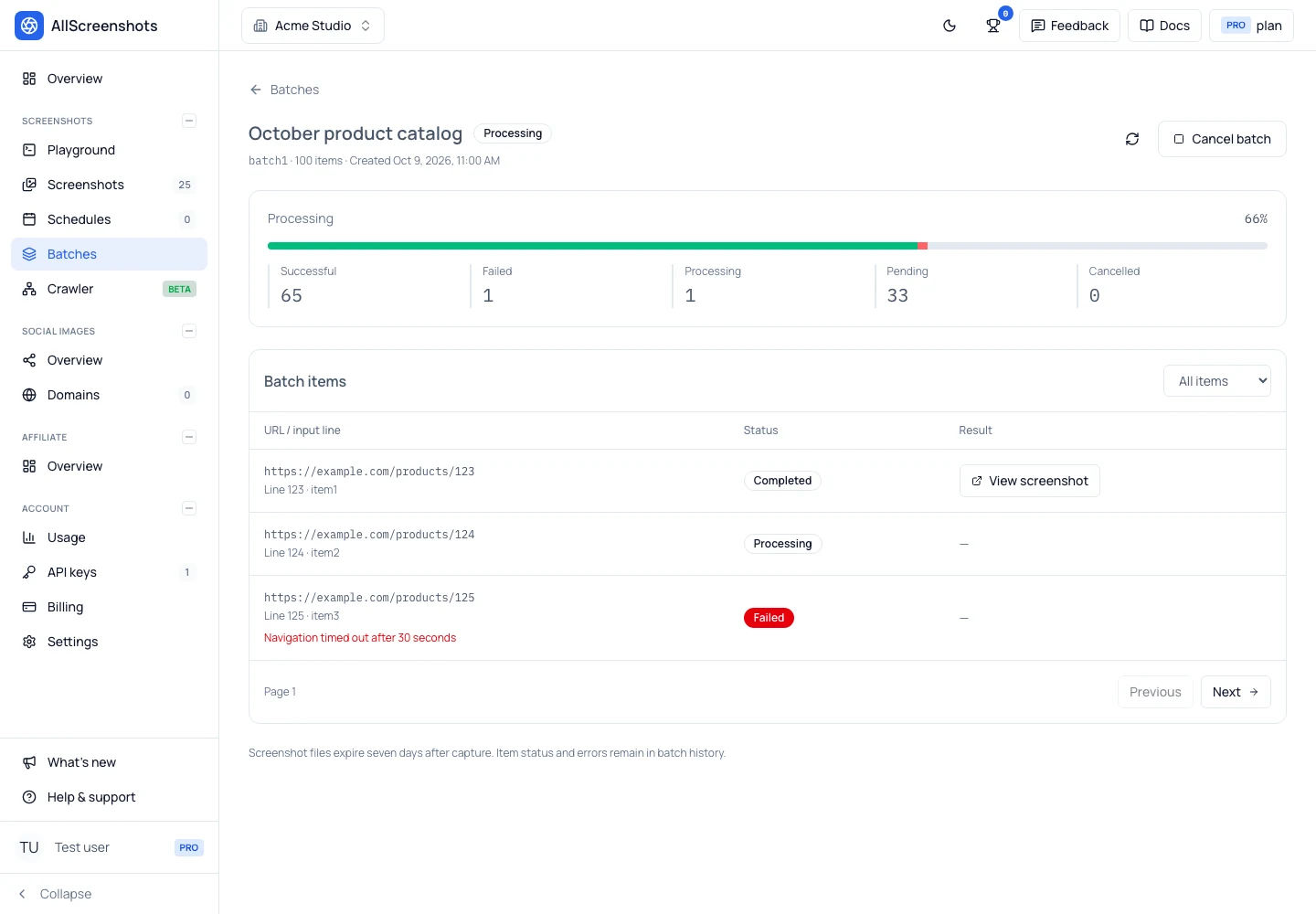
The new Batches page puts those answers in the Allscreenshots dashboard. It sits alongside Playground, Screenshots, and Schedules, and shows batches across your organization, including captures submitted through the API or the existing bulk workflow.
You can upload a file, review the draft, start processing, and return later to inspect individual results.
The dashboard with illustrative sample data, not a production capture run.
Upload a CSV and start your first batch
If you already have a spreadsheet of URLs, export it as CSV. Include a header named url, with one page address per row:
Name the batch and choose the shared capture settings, such as image format and full-page capture.
Click Create batch to make a draft.
In the draft, choose your CSV file and wait for submission to finish.
Review the item counts, then click Start batch.
Uploading the file does not start captures. The separate Start step gives you a chance to check the draft first. New captures default to WebP; choose another supported format when creating the batch if your workflow needs it.
The importer also accepts TXT files with one URL per line and JSONL files with one URL object per line. JSONL supports optional per-item capture overrides. For a short list, you can paste URLs directly into the draft.
Duplicate URLs remain separate items. Invalid entries are retained as failed items with an error and their input line, so you can trace a bad row back to the source file without losing the valid rows around it.
See the whole batch and the individual pages
The progress indicator separates successful, failed, processing, pending, and cancelled items. You can tell whether work is still underway and whether a finished batch needs attention.
Open a batch to inspect its items. Filter by status to focus on failed pages or captures that are still waiting. Each item shows its URL and, when supplied, its input line. Failures show an error message; successful captures have controls to preview and download available results.
That is useful for a product catalog, a directory of customer websites, or a campaign's landing pages. You can check the problematic subset while keeping the complete submission history in one place.
For example, a catalog team can export product-page URLs, use a consistent viewport across the batch, and inspect failed rows before correcting the source list. An agency can capture a set of client pages for a visual review. A compliance workflow can collect screenshots for an evidence package, then download the files before they expire.
For recurring captures of the same pages, Schedules remains the place to configure a repeating cadence. Batches handle a submitted list of work; the screenshot automation page covers the broader workflows.
Pause an upload or cancel pending captures
Large files are parsed and submitted incrementally. The browser does not need to load the complete URL list into memory before uploading it.
You can pause submission and resume by reselecting the unchanged original file in the same browser. The importer remembers accepted chunks and skips them when it resumes. Keep the source file unchanged until submission is complete; use a new batch for a different file.
Once processing has started, Cancel batch stops new captures from being claimed. Already running captures can finish and consume credits. Completed results stay available, and items that were still pending appear as cancelled.
Cancellation is useful when you discover the wrong viewport, an outdated URL export, or a list you no longer need to finish.
Credits and result retention
A batch reserves credits for captures that are in flight. Successful captures consume credits; failed captures release their reservations.
If credits run out, the batch waits and resumes automatically when credits become available. You can see that waiting state in the dashboard rather than having to submit the remaining list again.
Screenshot files expire seven days after capture. Batch history, item statuses, and errors remain available after file expiry or individual image deletion. Download the outputs you need to keep. You can explicitly delete a finished or cancelled batch once its in-flight captures have settled; deletion removes its history and remaining files in the background.
Large batches have an organization-level allowance
The default maximum is 100 items per batch. An administrator can raise the allowance for your organization, including above 10 million items. Each new batch retains the limit that applied when it was created, so a later change does not enlarge an existing draft.
A higher item limit does not add capture workers or make individual screenshots render faster. It lets a larger submission use the existing capture capacity over time. Credits, target-page behavior, and rendering capacity still determine how long it takes to finish.
We checked the storage and management path locally with 10,000,001 persisted synthetic items, production database migrations and indexes, and mocked rendering and storage. The checks covered pagination, summaries, worker claims, recovery, and cancellation. We did not render ten million real websites or measure end-to-end capture throughput. This test checks that batch management does not require loading or rewriting the entire batch for those operations.
The same workflow is available through the API
Use the batch API when your URL list comes from code. Create a draft with shared defaults:
Append sequential chunks of up to 1,000 entries, then explicitly start processing. Retrying an accepted chunk with identical request bytes returns its existing receipt instead of duplicating items. You can monitor individual items through cursor-based pages and receive an aggregate BATCH_COMPLETED webhook.
API-created batches appear in the organization's dashboard. Raw API keys can access only their own batches. The existing bulk endpoint keeps its single-request maximum of 100 URLs; use the chunked batch API for larger submissions.
Try it with a small list
Open Batches, upload a CSV, and review the draft before starting. The batch documentation covers file formats, resumable submissions, limits, and webhooks.