Find out how easy it is to capture and share pixel-perfect screenshots at scale using Allscreenshots. Sign up for a free account and start integrating your first screenshot API call today.
Audits depend on evidence. Whether you're preparing for a financial audit, a SOX control review, a vendor compliance check, or an internal process audit, the central question is the same: can you show what happened, when it happened, and why the conclusion is reasonable?
Screenshots help because they preserve context. A screenshot can show the page an auditor reviewed, the settings that were enabled, the status that was visible, the timestamp on a portal, the URL of a report, or the exact screen a control owner used to support an assertion.
They are not a replacement for professional judgment, source documents, confirmations, reconciliations, or system-generated reports. But used correctly, screenshots make audit evidence easier to understand, easier to review, and harder to misinterpret.
For formal financial statement audits, screenshots should be treated as supporting documentation. Auditors still need to evaluate whether the full body of evidence is sufficient, appropriate, complete, accurate, and reliable for the audit purpose.
Why screenshots matter in audits
Most audit evidence starts with a real-world question:
Was this account balance reviewed?
Was access removed on time?
Was a vendor approved before payment?
Was a bank statement available at period end?
Was a price, policy, or disclosure visible on a specific date?
Was a configuration setting enabled when the control operated?
Text notes alone often miss the details that make those answers convincing. A workpaper that says "reviewed dashboard on May 31" is weaker than a workpaper that includes the dashboard, the filter settings, the reporting period, the user-visible status, and the capture timestamp.
Screenshots reduce ambiguity. They show the reviewer what the preparer saw.
Where screenshots help most
Screenshots are especially useful when evidence lives in browser-based systems.
Order status, subscription terms, invoice portals, customer records
Procurement
Vendor approval pages, purchase order workflow states, payment run status
Access reviews
User roles, admin settings, removal confirmations, permission groups
Controls testing
Control execution screens, monitoring dashboards, exception queues
Compliance reviews
Public disclosures, policy pages, certification portals
Vendor audits
SOC portal access, attestation availability, security questionnaire status
In each case, the screenshot is strongest when it is tied to a specific procedure: what was tested, what assertion it supports, who captured it, when it was captured, and what source system it came from.
Screenshots in financial audits
Financial audits often involve evidence that lives outside a neat PDF packet. Teams use bank portals, billing systems, ERPs, payment processors, payroll tools, revenue platforms, cap table software, and approval workflows. Screenshots can help bridge the gap between those systems and the audit file.
Common examples:
Bank and cash evidence: Capture the bank portal page showing account name, date, ending balance, and statement availability before tying it to the formal bank statement.
Approval workflows: Capture journal entry approval, purchase order approval, or payment approval screens showing approver, status, and date.
System configurations: Capture revenue recognition settings, role permissions, close calendars, or approval thresholds as they existed during the audit period.
Exception follow-up: Capture cleared exceptions, remediation status, or evidence that a control owner resolved an issue.
The screenshot does not prove everything by itself. A bank portal screenshot, for example, is not the same as an independent bank confirmation. But it can make the audit trail clearer by showing how the team navigated from source system to supporting document.
Avoid treating screenshots as self-authenticating proof. If the underlying source matters, keep the source report, export, confirmation, or system log too. The screenshot should explain and preserve context, not replace the stronger evidence.
What makes a screenshot useful as evidence
A screenshot is more valuable when it captures the right details.
Include:
The full page or enough surrounding context to identify the screen
URL or application name
Report period, filters, or selected entity
Visible status, amount, role, approval, or configuration being tested
Capture date and time
User or account context when relevant and safe to show
Related workpaper reference or audit procedure ID
Notes explaining why the screenshot was captured
Avoid:
Cropped images with no source context
Screenshots of only one number with no surrounding labels
Browser tabs or sidebars that expose unrelated confidential data
Evidence captured after filters were changed but before filters are visible
Screenshots stored without naming conventions or workpaper references
For repeatable evidence collection, use consistent capture settings. Same viewport, same full-page mode, same wait condition, same account role, same URL pattern. Consistency makes screenshots easier to compare and easier to review.
The confidence problem
Audit teams do not just need evidence. They need confidence that evidence collection was controlled.
Manual screenshots can introduce avoidable uncertainty:
Did the preparer capture the right page?
Were the correct filters selected?
Was the page fully loaded?
Was the same period used each month?
Was a banner covering part of the evidence?
Did the screenshot happen before or after a control changed?
Can the reviewer reproduce the capture?
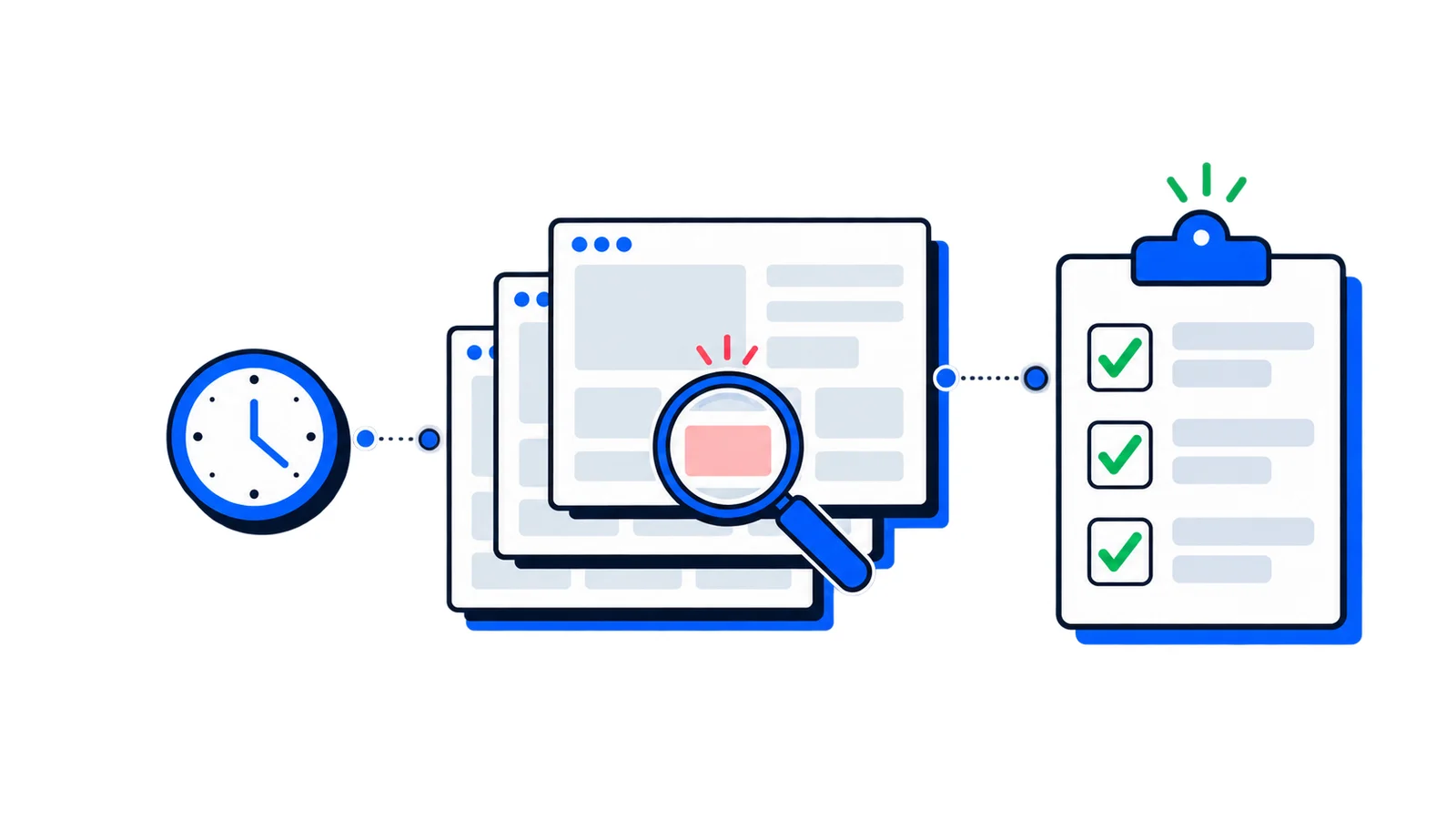
Automated screenshots help because the capture process becomes repeatable. Instead of relying on someone to remember the right steps, you define the URL, viewport, wait behavior, schedule, and delivery once. Every capture follows the same pattern.
That repeatability matters during reviews. When a reviewer sees a collection of screenshots captured with the same settings, naming convention, and timestamp pattern, they can focus on the evidence instead of questioning the collection process.
Building a stronger audit screenshot workflow
A good audit screenshot workflow has four parts.
1. Define the audit purpose
Do not capture screenshots just because they are easy to capture. Tie each screenshot to a procedure.
Examples:
"Document the approval status of all journal entries over $100,000."
"Capture monthly user access review completion status."
"Preserve the public pricing page at each quarter end."
"Show that the exception queue was cleared before close."
This keeps the evidence relevant and reduces noise in the audit file.
2. Capture consistently
Use the same settings each time:
Full-page capture when the relevant content extends below the fold
Fixed viewport for consistent layout
Wait condition or delay so dashboards finish loading
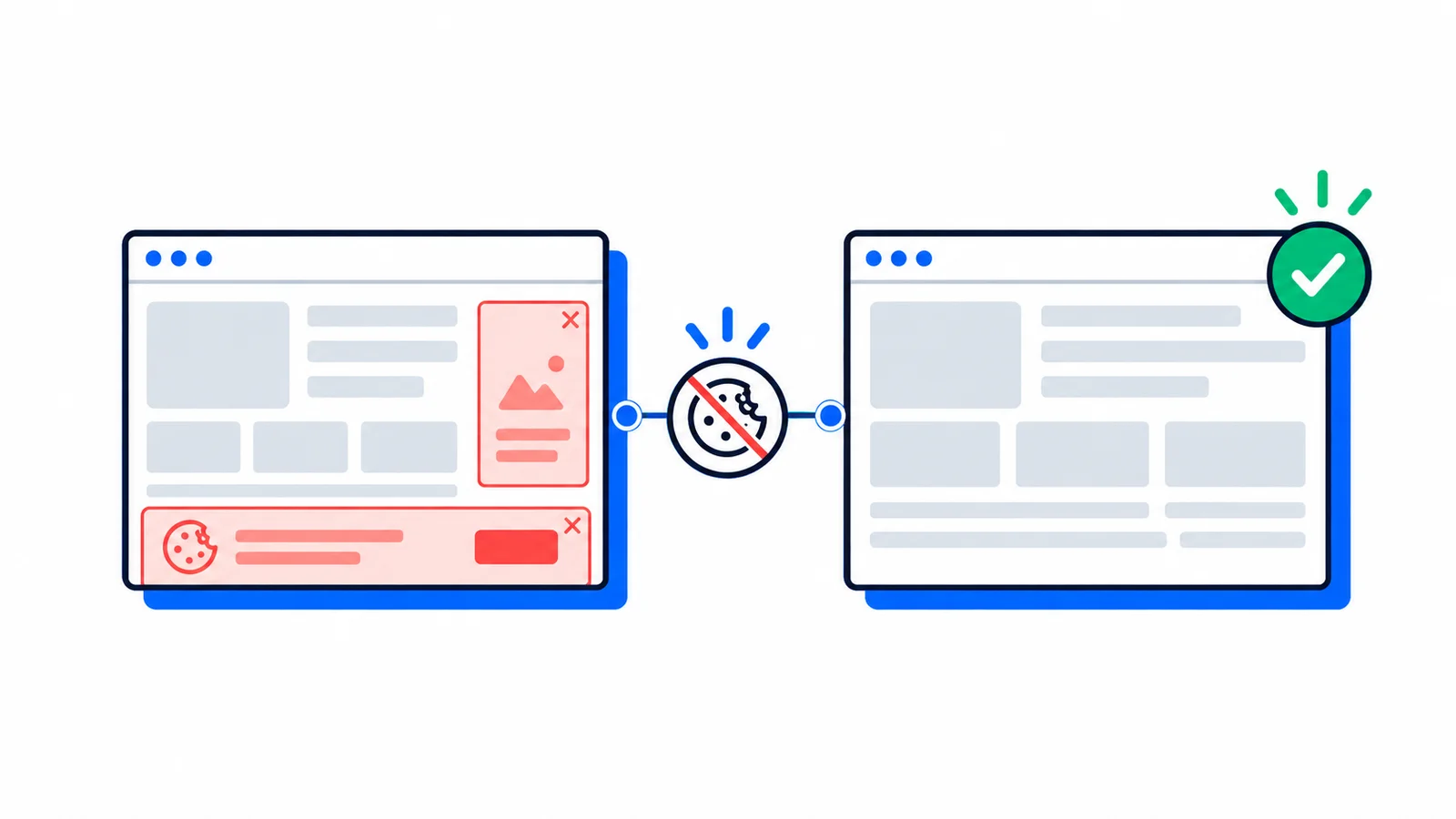
Cookie banner and ad blocking when reviewing public pages
Element capture when only one dashboard panel matters
If the page is dynamic, capture after the relevant content is visible, not merely after the browser has loaded the initial HTML.
3. Store with metadata
The file name and surrounding record should answer basic reviewer questions.
Useful fields:
Field
Example
Procedure
AR-03 monthly revenue dashboard review
Source URL
https://app.example.com/revenue/dashboard
Captured at
2026-06-03T09:15:00Z
Period
May 2026 close
Entity
US subsidiary
Captured by
automation user or preparer name
Notes
Filters: entity=US, period=May 2026
Metadata is what turns a screenshot from "an image in a folder" into usable audit documentation.
4. Preserve and review
Store screenshots somewhere durable, access-controlled, and aligned with your retention policy. For sensitive screenshots, redact or avoid capturing unnecessary personal data, credentials, customer details, or unrelated financial information.
Then make review explicit. A screenshot should not silently sit in a folder. Attach it to the relevant workpaper, ticket, control run, or evidence request so someone can review it in context.
Scheduled screenshots for recurring evidence
Recurring controls are where automation shines.
For example, a finance team might need evidence that a close dashboard was reviewed every month. Instead of manually capturing the same dashboard twelve times a year, they can schedule a screenshot for the first business day after close.
That schedule can:
Capture the same URL each period
Use the same viewport and wait settings
Deliver the screenshot to email, storage, or a webhook
Keep a consistent timestamp trail
Alert when the page changes unexpectedly
This is useful for more than financial close. Scheduled screenshots can preserve vendor portals, public disclosures, pricing pages, compliance dashboards, backup status pages, and access review screens.
If your audit evidence depends on a page that changes over time, scheduled screenshots give you a contemporaneous record instead of forcing you to reconstruct what the page looked like later.
Change evidence and visual comparisons
Sometimes the audit question is not "what did the page show?" but "did the page change?"
Visual comparisons can help with:
Public fee schedule changes
Pricing page changes
Terms of service updates
Security policy updates
Control dashboard changes
Vendor portal status changes
Disclosures published before a deadline
For these cases, a screenshot baseline plus later captures can make change review more concrete. The reviewer can inspect the old state, the new state, and the visible difference.
This is not the same as legal version control or formal document retention, but it can be a practical way to detect and document visible changes that matter to an audit or compliance review.
Common mistakes
Capturing too little context
A crop of a single number is easy to misunderstand. Capture labels, filters, dates, and surrounding page structure so the reviewer can tell what the number means.
Capturing too much sensitive data
Full-page screenshots are useful, but they can also include personal data, customer names, internal comments, or unrelated financial information. Configure captures to target the right region or use redaction where needed.
Forgetting dynamic content
Dashboards often load data after the page appears. If you capture too early, your evidence may show loading skeletons or stale values. Use a wait condition, a stable selector, or a short delay.
Relying on screenshots alone
Screenshots are context. They are usually strongest when paired with exports, reports, reconciliations, confirmations, logs, or system records.
Using AllScreenshots for audit evidence capture
AllScreenshots helps teams collect browser-based evidence without maintaining Puppeteer or Playwright infrastructure.
You can capture a full-page screenshot with one API call:
For review workflows, send captures to email, storage, or webhooks so each screenshot lands where your audit team already works.
Conclusion
Screenshots help audits by preserving context. They show what was visible, which filters were selected, which status was displayed, and when the evidence was collected.
For financial audits, that context can make evidence packages easier to review and easier to trust. For compliance and internal audits, screenshots can make recurring control evidence more consistent and less dependent on memory.
The important rule is to use screenshots deliberately. Tie them to an audit procedure, capture enough context, store them with metadata, protect sensitive information, and pair them with stronger source evidence when the assertion requires it.
Done well, screenshots do not just make audit files prettier. They make evidence collection more repeatable, reviewable, and defensible.
 Best Practices
 Guide
Guide Guide
Guide